Student Group
Student Group
A group of students who are in the same class or batch as one another is known as a student body.
For instance, if a group of students enrolled in the same program is referred to as a student batch, then a student group is a collection of those students who have registered for the same optional course inside that student batch.
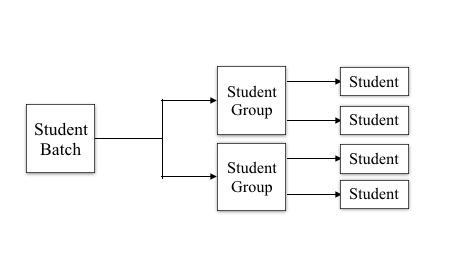
To access Student Group, go to:
Home > Education > Student > Student group
1. Prerequisites
It is advised that you first build the following before starting a Student group:
Student
Program Enrollment
Student Batch name
Student Category
Instructor
2. Creating a Student Group
Click New under Student Group List.
Group Based On: Decide how you want to divide your students into groups. There are three possibilities:
Batch: In this situation, a list of all the students from a particular batch would be fetched.
Course: In this instance, the last student to enroll in a particular course will be fetched.
When you want to gather a group of pupils for specific school activities, you can use this option.
Type in the name of the student organization.
Save.
2.1. Additional Options while creating a Student Group
In addition to the aforementioned required choices, the following areas must be filled out on the form to start a student group:
The academic year and term for which the student group is being formed should be chosen.
Program: Decide which Program the student group is being formed for.
Choose the batch from which you wish to retrieve the student group's list of members.
Enter the maximum number of students who can be a part of this student group under Max Strength. The system will prevent you from saving this group and display an error if the number of chosen students in the group exceeds the Max Strength.

Student Category: You can choose to include just students who fall under a particular category in this group.
Only when the group is based on a course does this option appear. Here, you can choose a specific course, and a list of only those students who have taken it will be retrieved in order to form this student group.
2.2. Features:
Students: List the names of the pupils you wish to include in this pupil group. The student list will be retrieved using the criteria you've chosen, such as academic year, academic term, batch, program, and course, among others.
Obtain Students: Depending on the parameters you choose above, the system will automatically retrieve a list of students. Once you click "Get students," all the students whose criteria meet the Student Group will be added to the list of students.
You must manually choose the students for an activity-based group because there may be no set criteria for this group and any student may be chosen to be added to it. In this circumstance, Get Students won't work.
- Choose the teachers or mentors who will work with this particular group of students.

3. After creating a Student Group
The following can be produced from the student group once it has been created and saved:
Attendance: You will be taken to a page where you may mark each student's attendance for a certain date using the Student Attendance Tool.
Course Schedule: You will be taken to Course Schedule after being led there, where you can view the schedule for this group of students and also add a new course schedule for them.
Assessment Plan: You will be taken to a page where all of your student group's assessment plans are listed and you can also create a new assessment plan for the group.
Update Email Group: After choosing this option, the email addresses of the group's students will be added to the email group, enabling you to send newsletters to the group's whole subscriber base.
- Newsletters: With this feature, you can send newsletters to every subscriber inside the student group.