Limited User
The user will get limited access to the system
Only certain documents from the specific modules can be accessed by limited individuals. Some users only use a few modules and don't use the others. For instance, every employee in the organization was given the necessary system access to record daily attendance or leave requests. However, let's say that out of 500 employees, only 100 use all paperwork, and the other 400 simply require documentation for daily attendance or leave requests. These people are restricted users.
To address this use scenario, the User Type document is crucial. There are two basic user types: "System User" and "Website User." System Users have access to both the desk and the website portal, whilst Website Users only have that access. Geer ERP has created a new user type called "Employee Self Service" to meet the situation where employees only have limited access to documents by default.
User Type
Go to: to see the User Type document.
Users > User Type
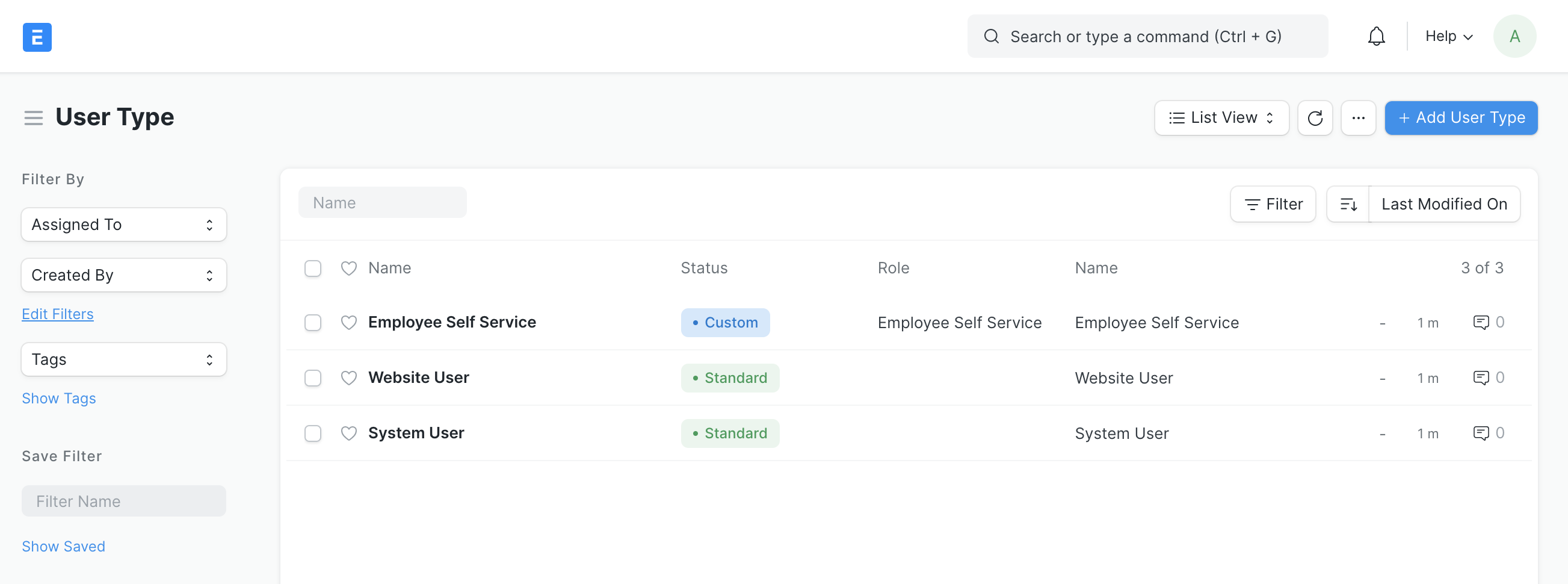
The usual user types of Website User and System User cannot be deleted or modified. However, custom (non-standard) user types can be added, removed, or changed. No user is given the ability to delete content by default.
Non-Standard User Type
1) The user must choose the Custom Role, the document to which they want to apply the user permission, and the fieldname of the user when using a non-standard user type.
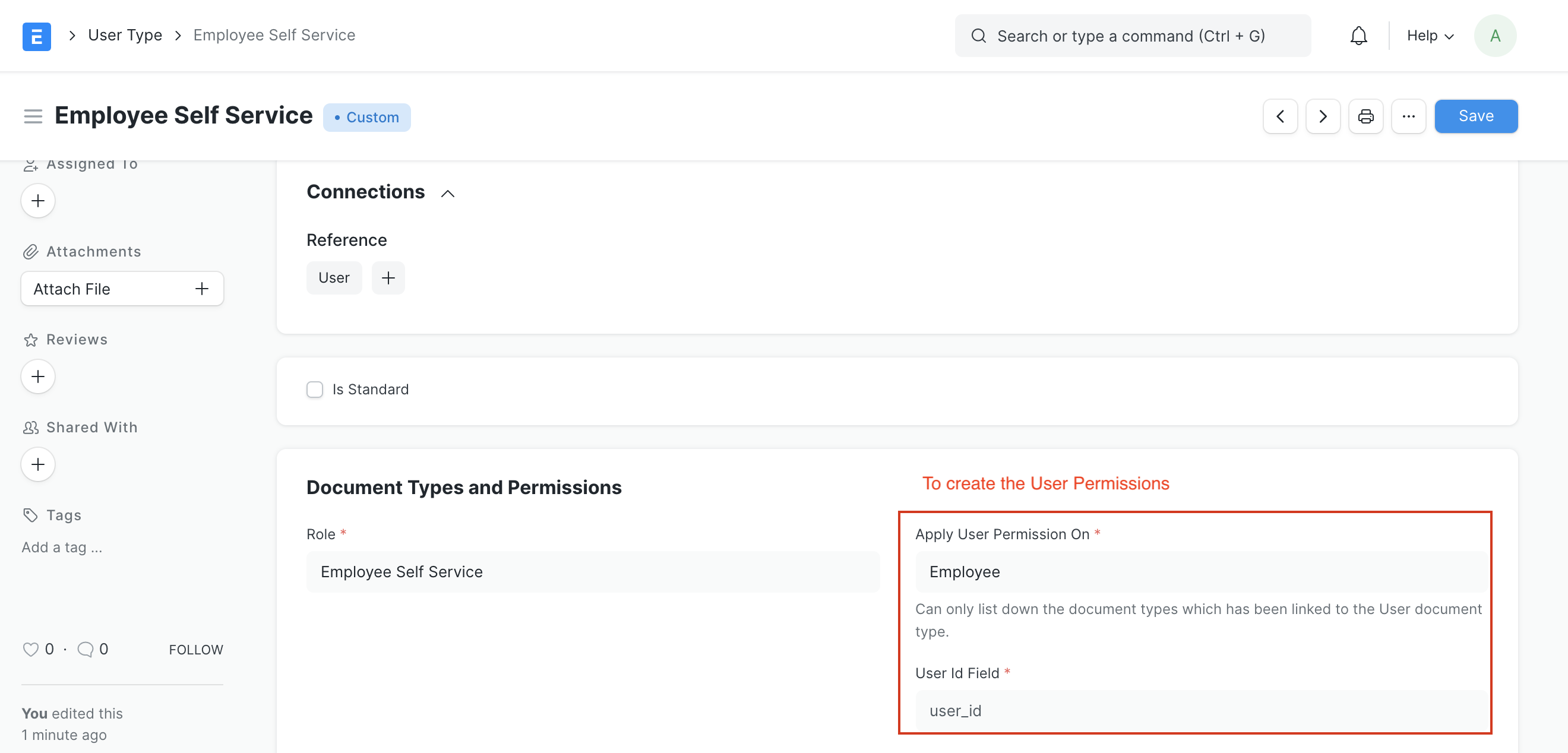
Employee in the image above has a link field with a User ID that connects to a User document. The user for the specific employee can only read the documents in which the specific employee field is linked because the "Apply User Permission on" has been set to "Employee". The employee, for instance, is only able to view salary slips that have been generated using their employee ID.
2)Document Types:
Users with non-standard user types can only access the documents that are listed for them.
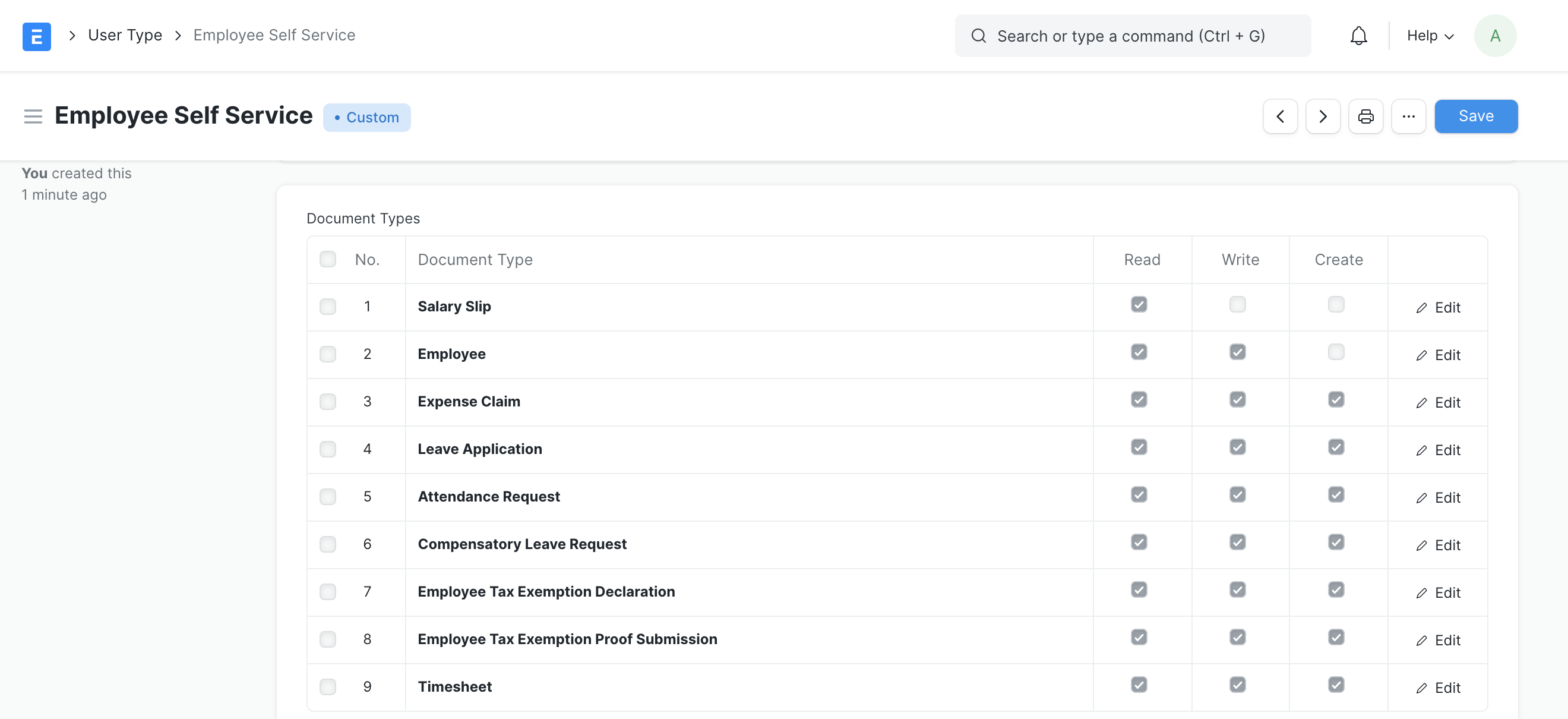
For this specific User Type, the above table also serves as the Role Permission Manager (Employee Self Service in our case). The generic Role Permission Manager won't have access to Employee Self Service as a role.
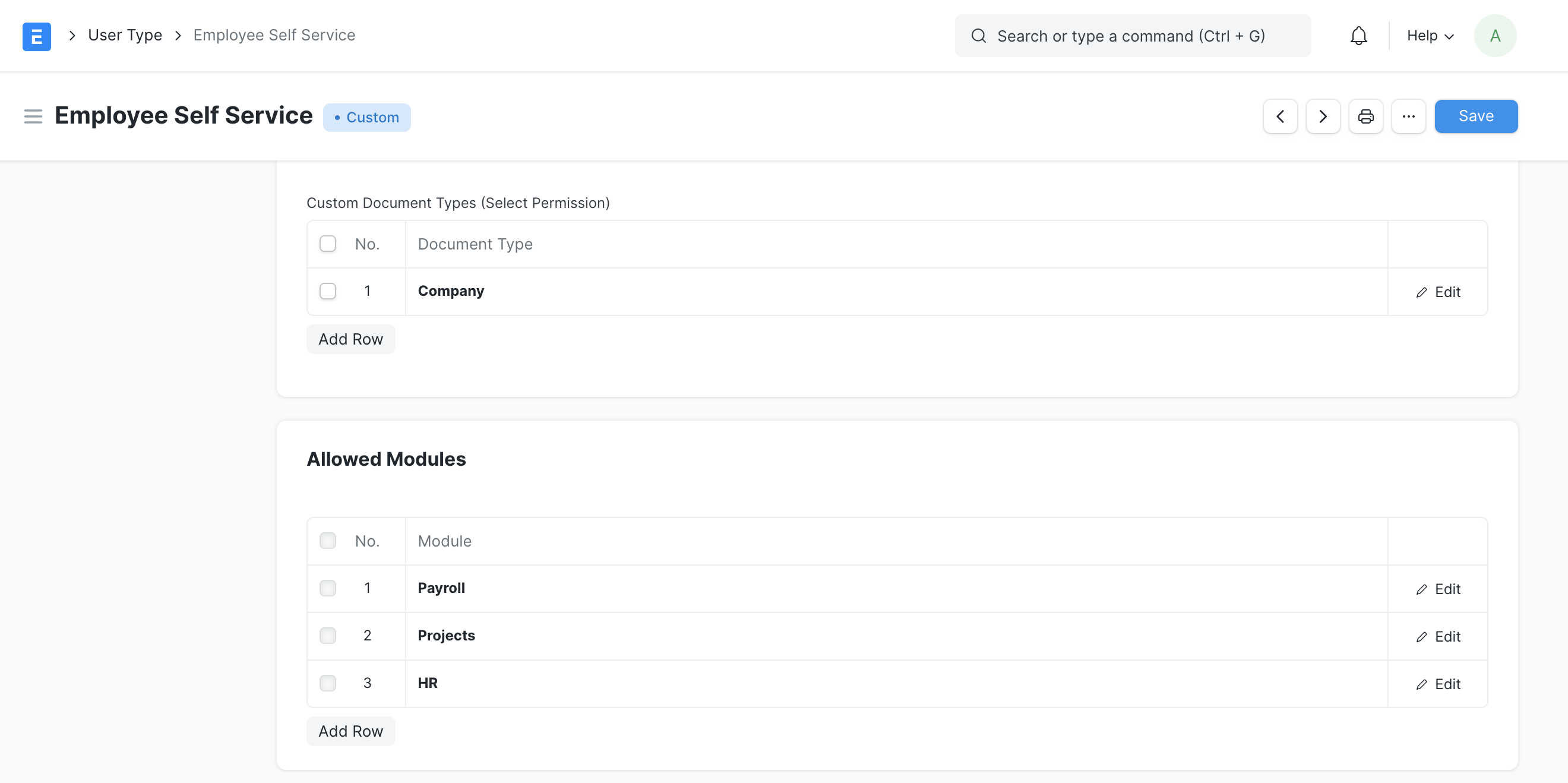
3) Document Types (Select Permissions Only):
You must list all the document types for which you want the Employee Self Service User to have SELECT access in this table. There is no restriction on how many doctypes you can include here. Users who have Select perm access will not be allowed to create records for the documents.
Adding non-standard User
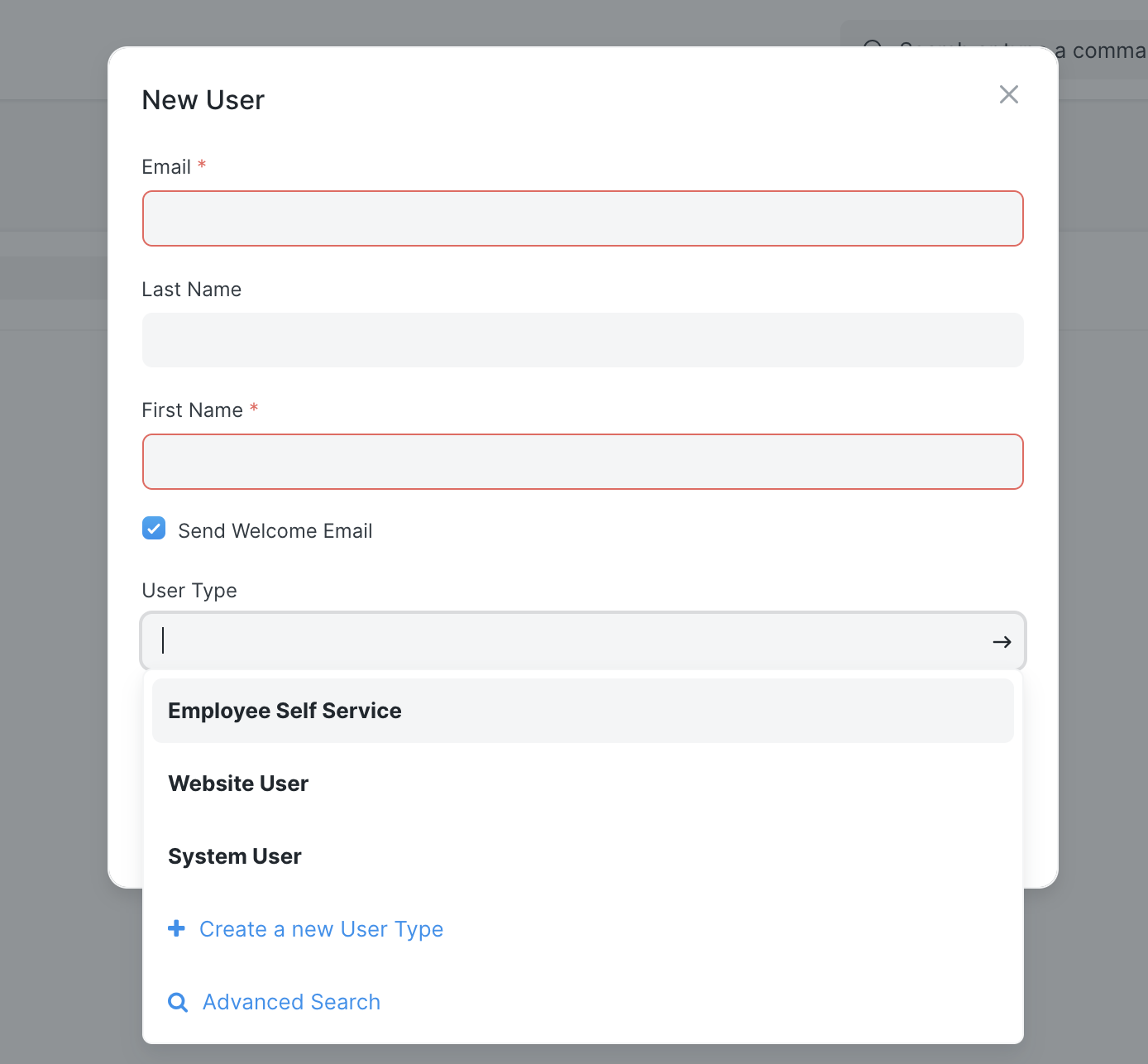
The user must choose the user type when adding a new user. In the event of a non-standard user type, the relevant user must be connected to the document specified in the "Apply User Permission On" field.