Warranty Claim
Warranty Claim
When a customer requests free repairs for an item or service you're offering during the warranty period, this is known as a warranty claim.
If you sell items covered by warranties or extended service contracts like the Annual Maintenance Contract (AMC), your customers may get in touch with you to report a problem with the product and provide you the serial number if it breaks down.
Go here: to access the list of Warranty Claims.
Home > Support > Warranty > Warranty Claim
1. Prerequisites
It is suggested that you first create the following before creating and utilizing Warranty Claim:
- Customer
- Serial Number
- Item
2. How to Create Warranty Claim
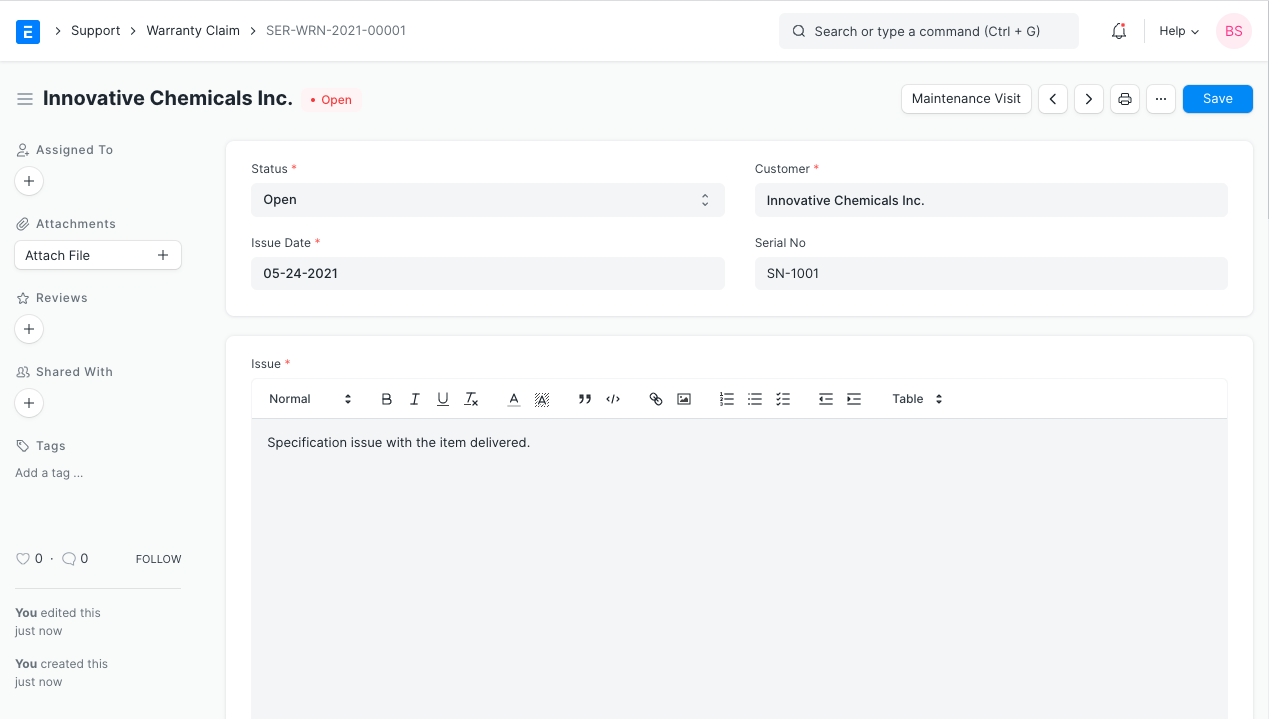
Click New in the Warranty Claim list.
Choose a client.
Choose the item's serial number to be used to record the warranty claim. The system will then immediately retrieve the serial number's information and show if it is still covered by warranty or has an AMC.
Provide a brief summary of the problem. A user can make a table and submit an image.
Save.
2.1 Additional Options when Creating a Warranty Claim
Status: When a warranty claim is created, its status is automatically set to "Open." The user may modify the status to:
Fix/repair work is currently being done on the item.
Closed: The repairs have been done and the Warranty Claim is now closed.
Cancelled: The Warranty Claim was rejected because it was not legitimate.
Issue Date: The current date will be noted when the Warranty Claim is created. This field can be changed.
3 Features
3.1 Item and Warranty Details:
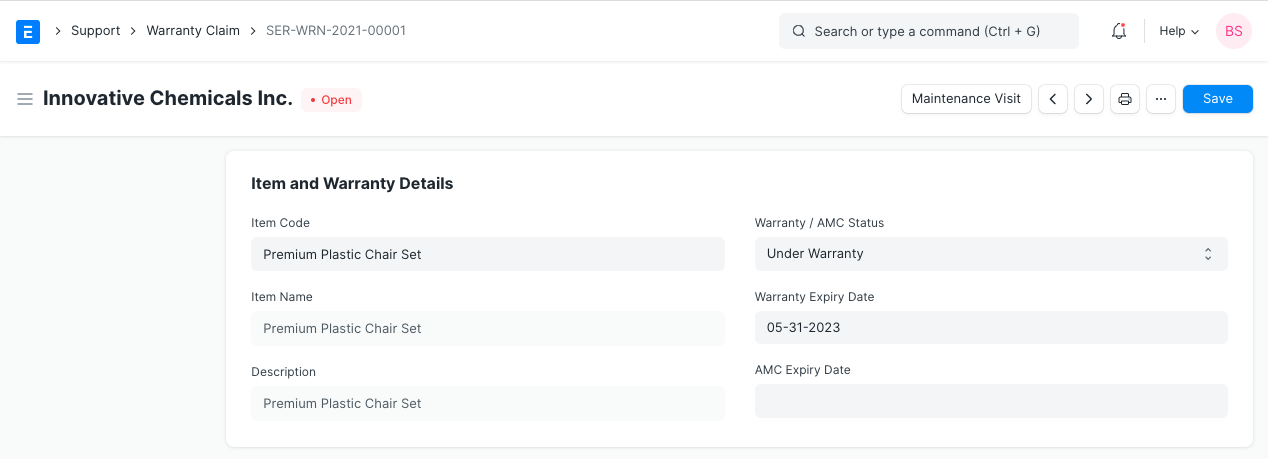
Following the selection of a serial number, the following information about the item will be fetched:
- Item Code
- Item Name
Item Description The details about Warranty/AMC will be fetched according to the Serial Number.
State of warranty or AMC: The choices are "Under Warranty," "Out of Warranty," "Under AMC," and "Out of AMC." Depending on your terms of service, the status can be changed to Out of Warranty/AMC if the item has been tampered with or the warranty has expired.
Warranty Termination Date
AMC Expires on
3.2 Resolution
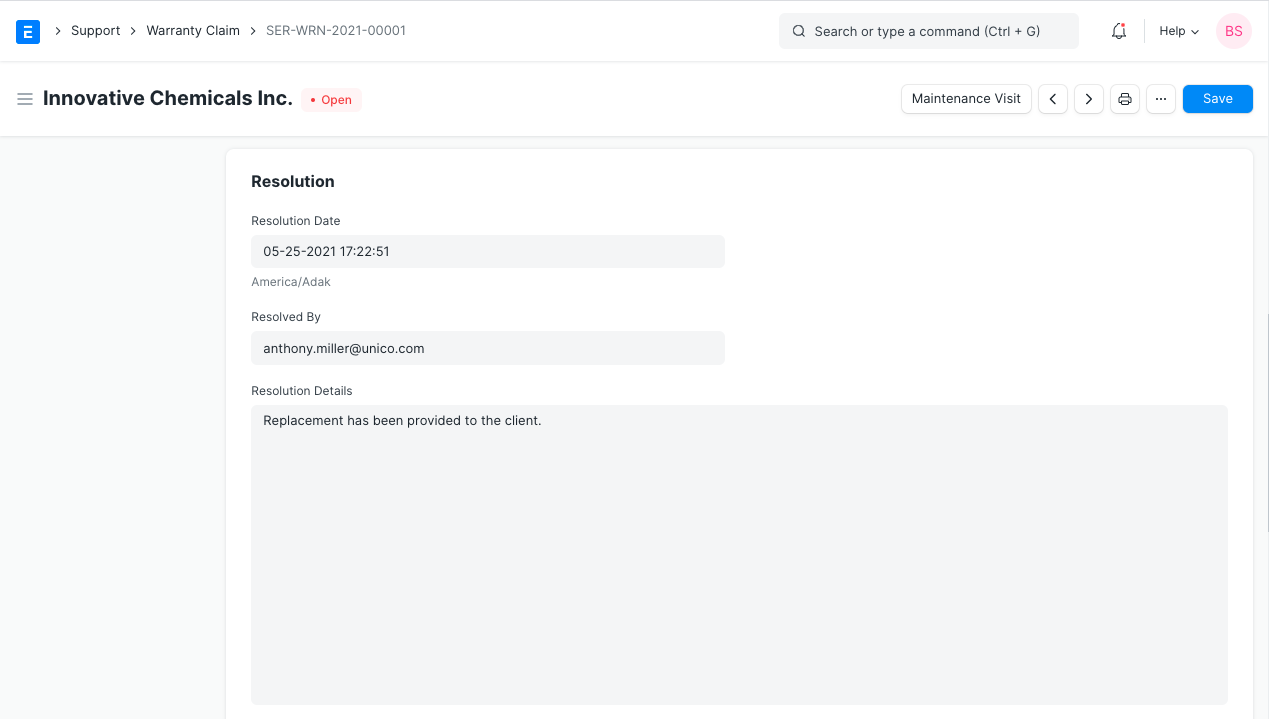
Resolution Date: Current date and time will be automatically obtained and entered in the resolution Date box when the warranty or AMC is closed. Also editable is this field.
Resolved By: Set the user's email address who handled the warranty claim. The user created in the system is associated with the email ID.
Resolved Details: It's a text box here. The warranty or AMC claim's specifics can be entered by the user. A user may also enter data or make a table, as well as submit an image.
3.3 Customer Details
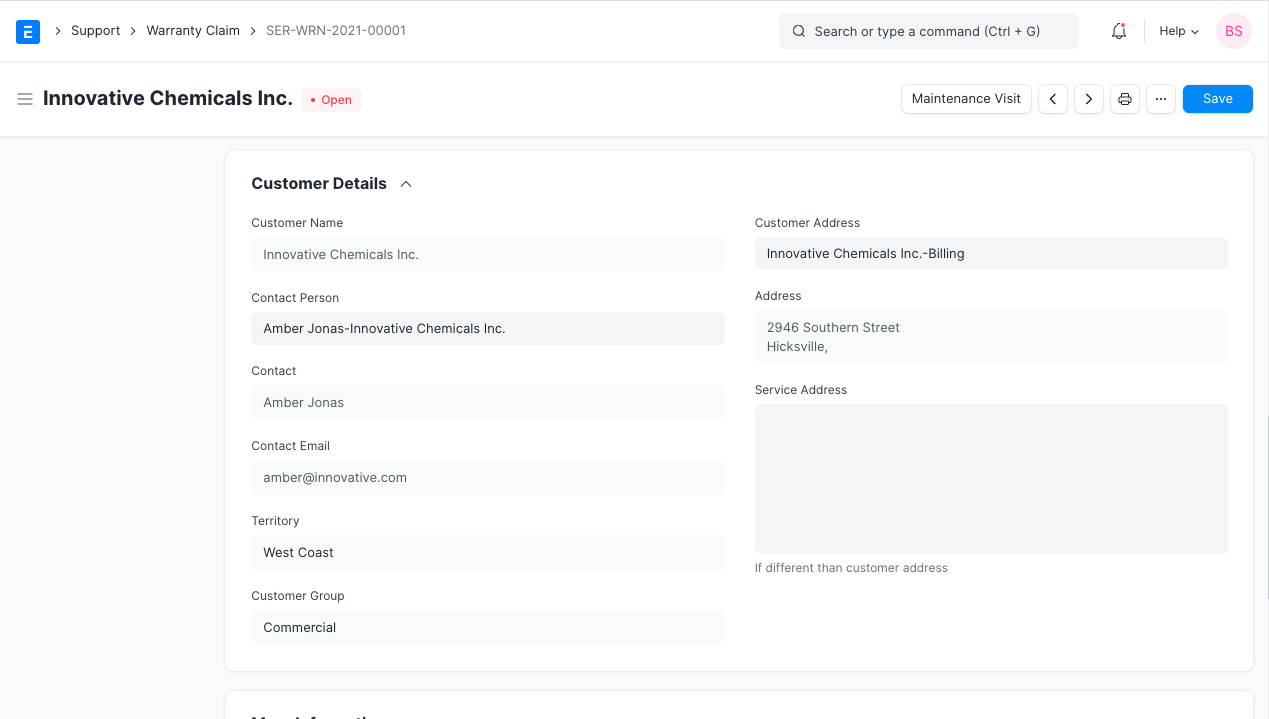
The following details of the Customer will be fetched:
Customer Name
Contact Person
Territory
Customer Group
Customer Addresss
Service Address If the service address is different from the customer address, the user may enter it.
3.4 More Information
- Company: Automatic selection will be made between the Warranty and AMC that the company has designed.
Raised By: If the customer is an organization, the user may provide the AMC or Name of the person who raised the warranty.
From Company: The user can type in the name of the business that created the warranty or AMC.
You can use this information to create a new Maintenance Visit record if a Customer visit is necessary to resolve the issue.