Email Inbox
Once an email account is added, the email inbox will be accessible.
Many transactional email exchanges with parties like customers, suppliers, and other employees inside the organization are necessary for running a business. You can import all of your company emails into your Geer ERP account using the Email Inbox feature. Geer ERP becomes a single platform for accessing all business information when access to business emails and other transactional information is enabled.
Each System User's Email Inbox can be set up in Geer ERP. The specific steps to set up an email inbox for a user are listed below.
1. Create a User
An email inbox can only be set up for a system user. Therefore, make sure you've added yourself and your coworkers as Users and given them the appropriate permissions.
Go to the User page to learn how to add a new User.
2. Create an Email Domain
Domain for the following emails You can immediately start the creation of an email account because the service is ready to use. Learn more here about setting up an email domain.
- Gmail
- Yahoo
- Sparkpost
- SendGrid
- Outlook.com
- Yandex.mail
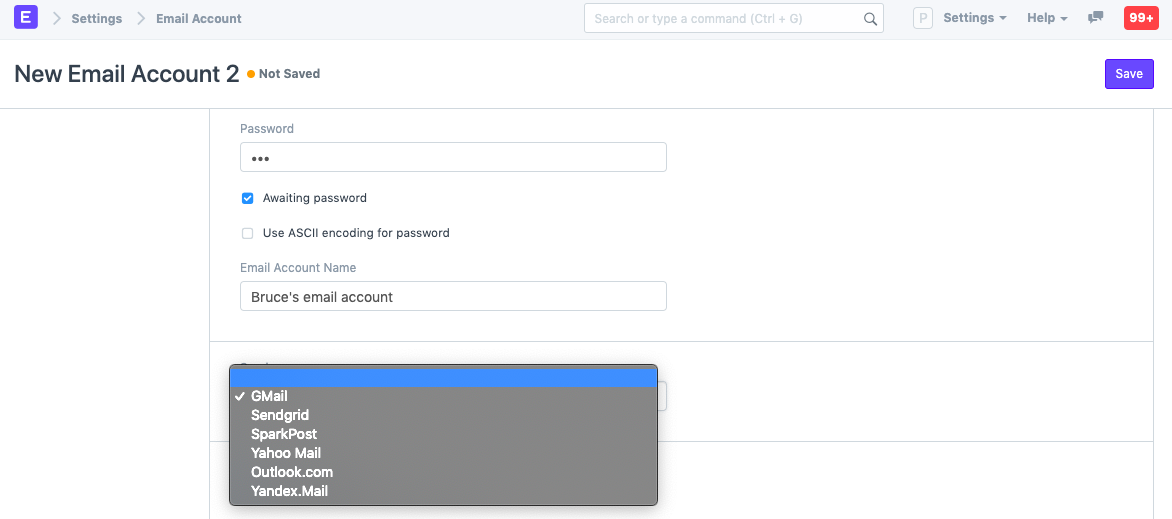
You must set up an Email Domain master in order to send and receive emails into your Geer ERP account from other email providers (such as Webmail or Gmail). This master contains information on the email gateway, such as the SMTP address, port number, and IMAP/POP3 address information. If you've ever set up a local email client (like Outlook), Email Domain master asks for similar information.
Go here: to add a new email domain.
Home > Settings > Emails > Email Domain > New
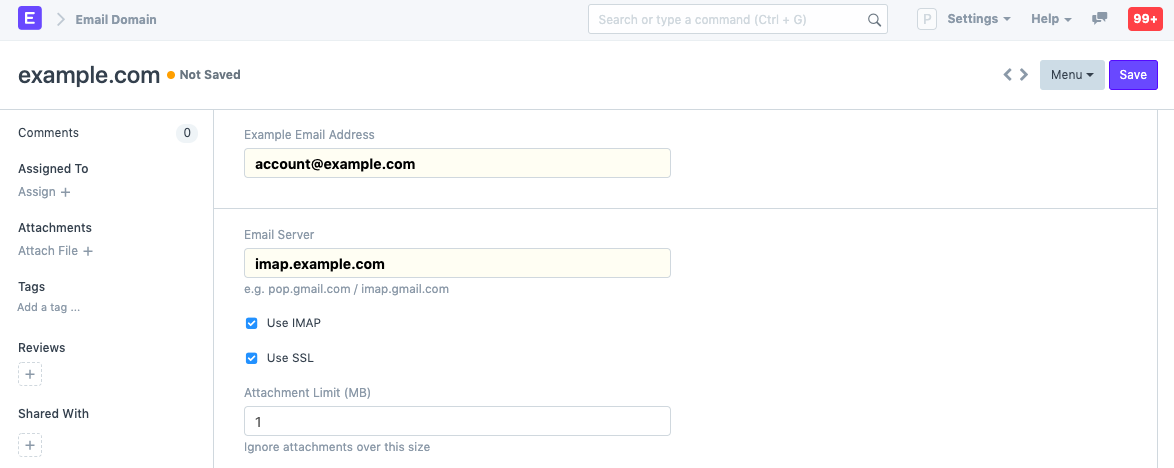
Here is more information on email domains. Once you've set up an email domain for your email service, all of the users in your Geer ERP account will utilize it to create email accounts.
3. Email Account
Based on the user's email ID, create an email account. An Email Account master needs to be created for each User whose email account will be integrated with Geer ERP.
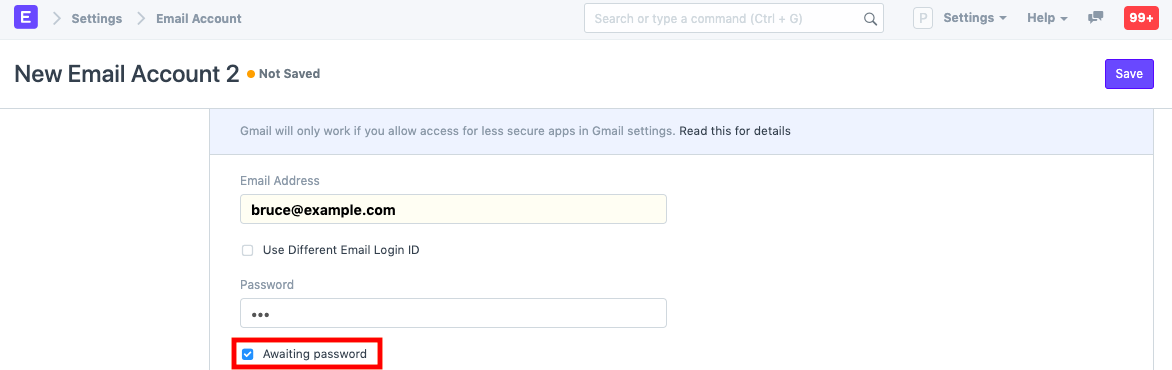
Check the "Awaiting Password" box if you are creating an email account for a coworker whose email password you do not know. When logging into his or her Geer ERP Account, a User (for whom an email account has been registered) will be prompted to input their email password.
Leave the Append To field empty if you are creating an email account for a user's inbox.
Read Email Account documentation for more details on how to setup.
4. Linking Email Account in the User master
Select the newly formed Email Account for the User once it has been created. This will guarantee that only this User in your Geer ERP account will be able to access emails that are fetched from the specified Email ID.
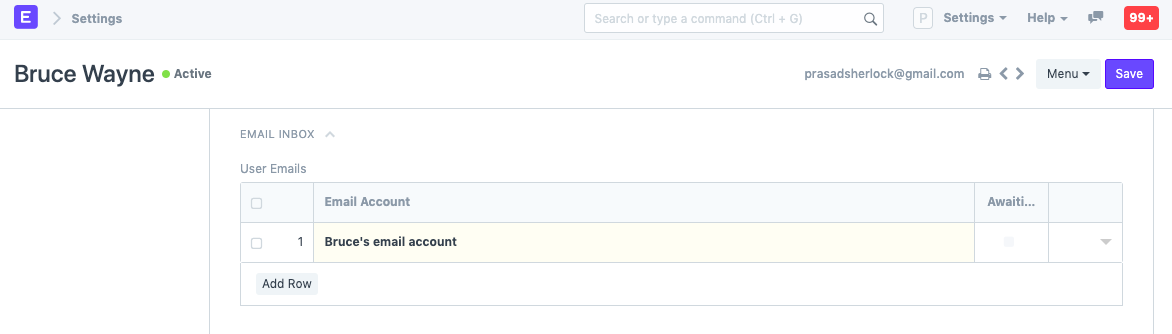
You can link multiple emails with one user.
5. Using Email Inbox
If you configured Email Inbox correctly, as shown above, the icon for Email Inbox will be visible when a user logs in. By doing this, the user will be taken to the Geer ERP account's Email Inbox view. The Email Inbox view will fetch and list every email that was received on that particular email address. The user can open emails and take different actions on them.
5.1 Folders
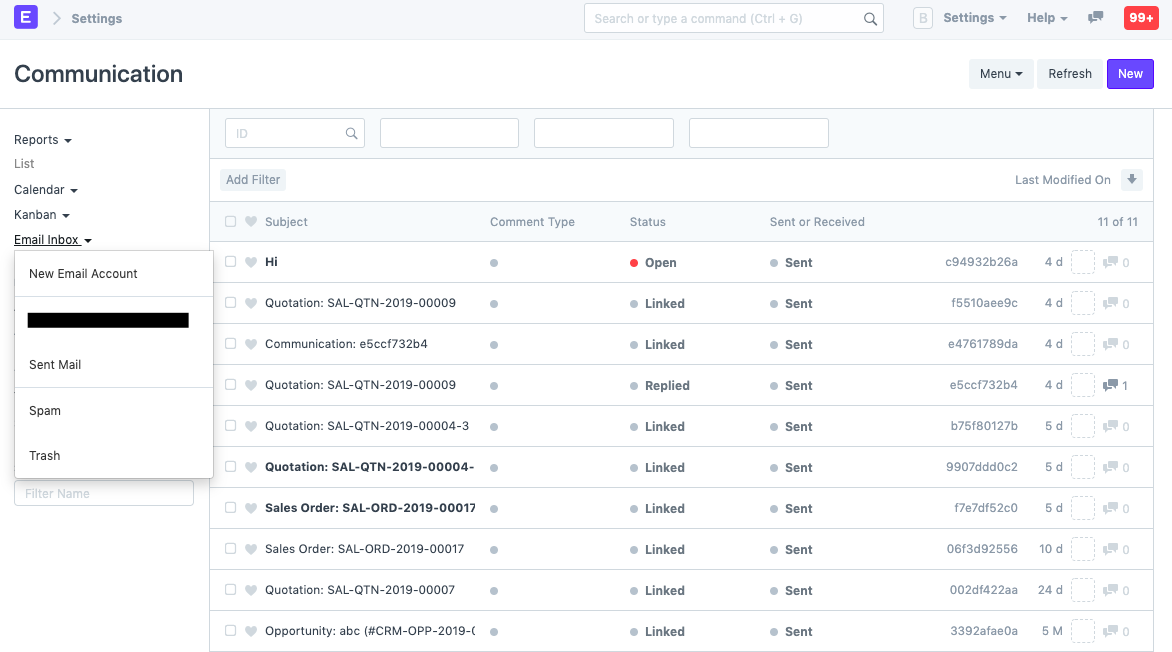
Multiple email accounts can be linked to a single user in Geer ERP. Click the Email Inbox option in the left bar to switch to the Inbox of a different email account and access other folders like Sent Emails, Spam, and Trash.
5.2 Actions
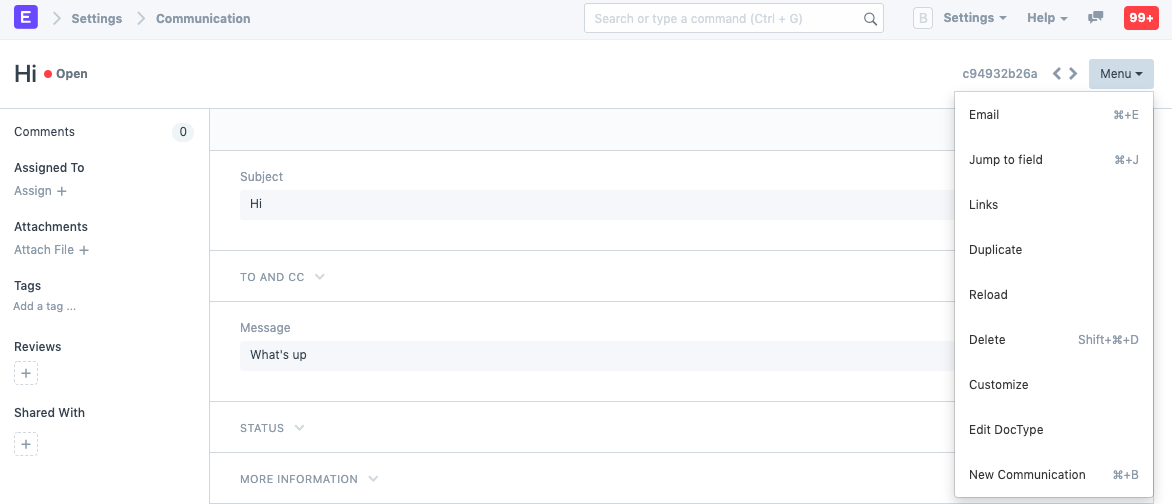
You can perform a number of actions on the emails in your inbox, including Reply, Forward, Mark as Spam, and Trash.
5.3 Relink
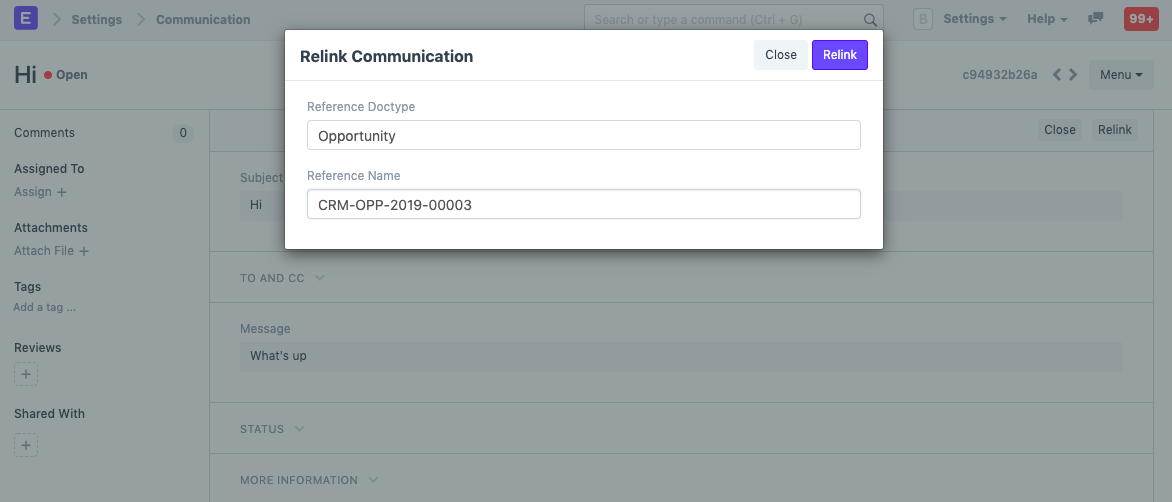
Depending on the email's context, you can relink it to a document like an issue, lead, opportunity, etc. Choose the email's destination document and the document type.