Payroll Setup
Payroll Setup
A salary is a set sum of money or other remuneration that a company gives to an employee in exchange for work that is completed.
The management of financial records for employee salaries, wages, bonuses, net pay, and deductions is known as payroll.
ERPNext requires Payroll processing.
1.Payroll Period Definition (optional)
2.Income Tax Slab Definition (optional)
3.With salary components, create a salary structure (Earnings and Deductions)
4.Using Salary Structure Assignment, assign salary structures to each employee.
5.Salary slips can be produced using payroll entry.
6.Create a salary entry in your accounts.
Payroll Period
An employee's salary is a set sum of money or other remuneration received from their employer in exchange for the work they have completed.
Payroll is the management of financial records for salaries, wages, bonuses, net pay, and deductions for employees.
For ERPNext's Payroll processing,
Specify the Payroll Period (optional) What Is Income Tax Slab? (optional) Salary Structure Creation Using Salary Components (Earnings and Deductions) Each Employee's Salary Structures should be assigned via Salary Structure Assignment. Payroll Entry: Salary Slip Generation In your accounts, record the salary.
In ERPNext, a Payroll Period is a time frame during which Employees are compensated for their work for the Company. It is simpler to manage changing legislation when you establish the Tax slabs that apply for the period using the payroll period.
If you do not plan to use Flexible Benefits or Tax Slabs, configuring Payroll Period is unnecessar
Salary Component
You can define each Earning and Deduction component in this document, which can then be utilized to build a salary structure and produce a salary slip or additional salary. Also, you can customize the type, condition, formula, and other options that are covered below. To customize each component so that it complies with your Business / Regional regulations, you should be able to activate different combinations of the following choices.
- Depending on Leave Without Pay (LWP): LWP occurs when an employee exhausts their allotted leave or takes a leave without approval (via Leave Application). When enabled, ERPNext will automatically withhold pay depending on the ratio of LWP days to the number of working days in the month (based on the Holiday List).
Nota Bene: If you don't want ERPNext to manage LWP, make sure none of the Salary Components have this flag turned on.
- Don't add up the following: The component won't be added to the total of the Earnings or Deductions on the Pay Slip if this option is selected.
Earning
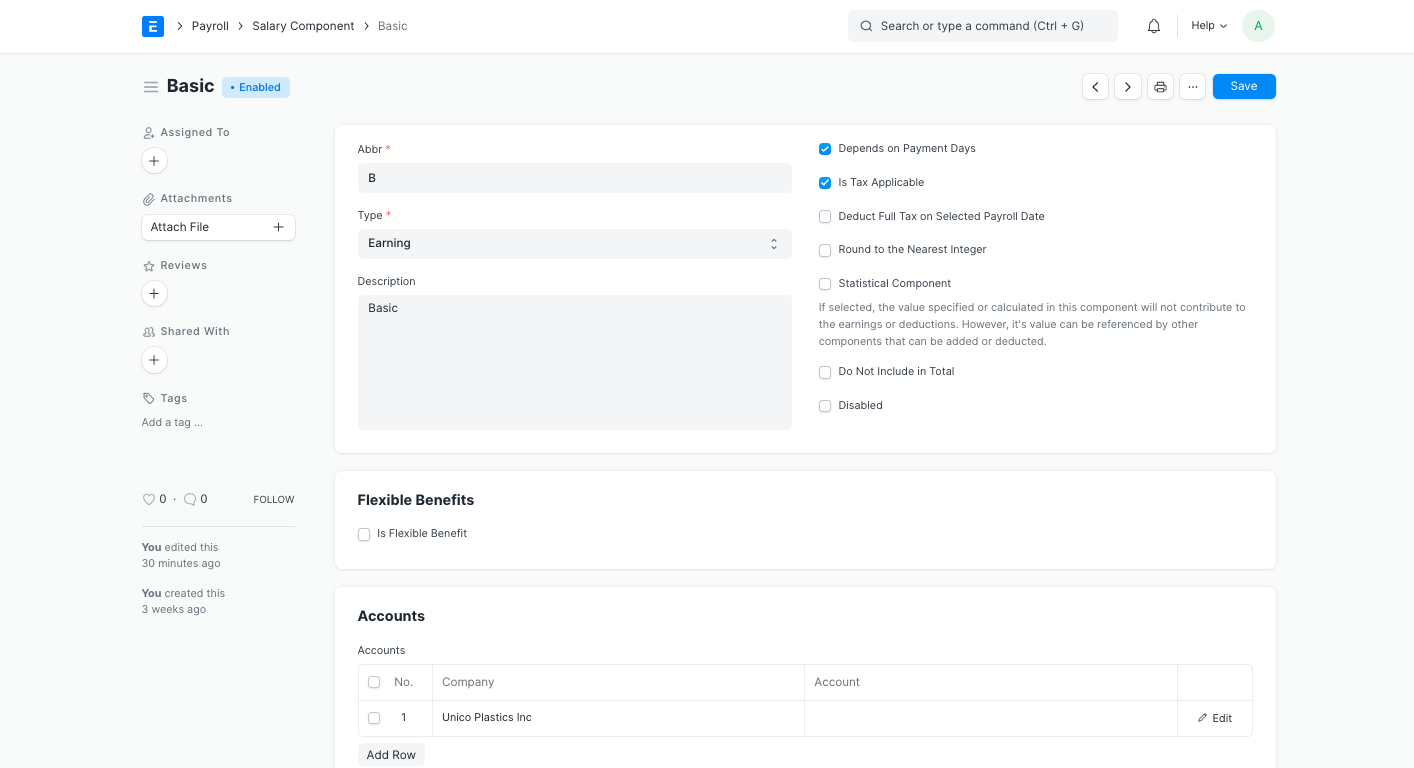
- Is Additional Component: The component may only be paid as Extra Salary, according to this option. Performance bonuses or compensation for on-site deputization are a few of examples of this component. Those elements are not regarded as a part of the typical salary structure. Instead, Extra Salary containing these components can be submitted as needed and will be immediately added to the Pay Slip.
- Is Tax Applicable: You might want to enable this option if a component needs to be taken into account for tax computations according to the payroll period. For payroll processing, you would need to have a Payroll Period and Income Tax Slab configured with legitimate Tax Slabs.
- Is Payable: These components may be recorded against different payable accounts, and the Accounts table must be configured.
- Flexible Benefits: While making a claim, Employees have the option of receiving Flexible Benefits on a pro-rata basis or annually. Unless the employee fails to submit the claim with sufficient bills or paperwork, these are often tax-exempt. If enabled, you can define the highest benefit that an employee may receive in a calendar year. With the ones they choose, employees can construct Employee Benefit Applications.
Note: Workers may only select from the flexible components that are present in the salary structure that has been assigned to them while using the Employee Benefit Application.
- Pay Against Benefit Claim: Workers have the choice of receiving flexible benefits monthly or in addition to their monthly wage each year via an Employee Benefit Claim. If you choose to allow it, the employee will get the component's allotted payment when they submit an employee benefit claim. If not, the sum will be distributed pro rata as part of the employee's remuneration.
- Only Tax Effect (Cannot Claim But Part of Taxable Income): These components are those that the employer has already paid the employee in cash or through another method, such as a car that was bought for the employee's use. The Employee must pay the tax but is not permitted to claim it. The sum allotted for this component will be taken into account when determining the Employee's taxable income.
- Make Separate Payment Entry Against Benefit Claim: It's possible that some flexible benefits must be paid using separate vouchers due to legal requirements. If you choose to enable it, the amount paid for these components will be recorded separately for each Employee when the bank entry is posted.

Note: Flexible benefits are not included in the normal tax computation because they are often tax-exempt. Use "Deduct Tax On Unclaimed Employee Benefits" in Payroll Entry / Salary Slip while processing the Salary to tax these components at any point prior to that previous payroll.
Deduction
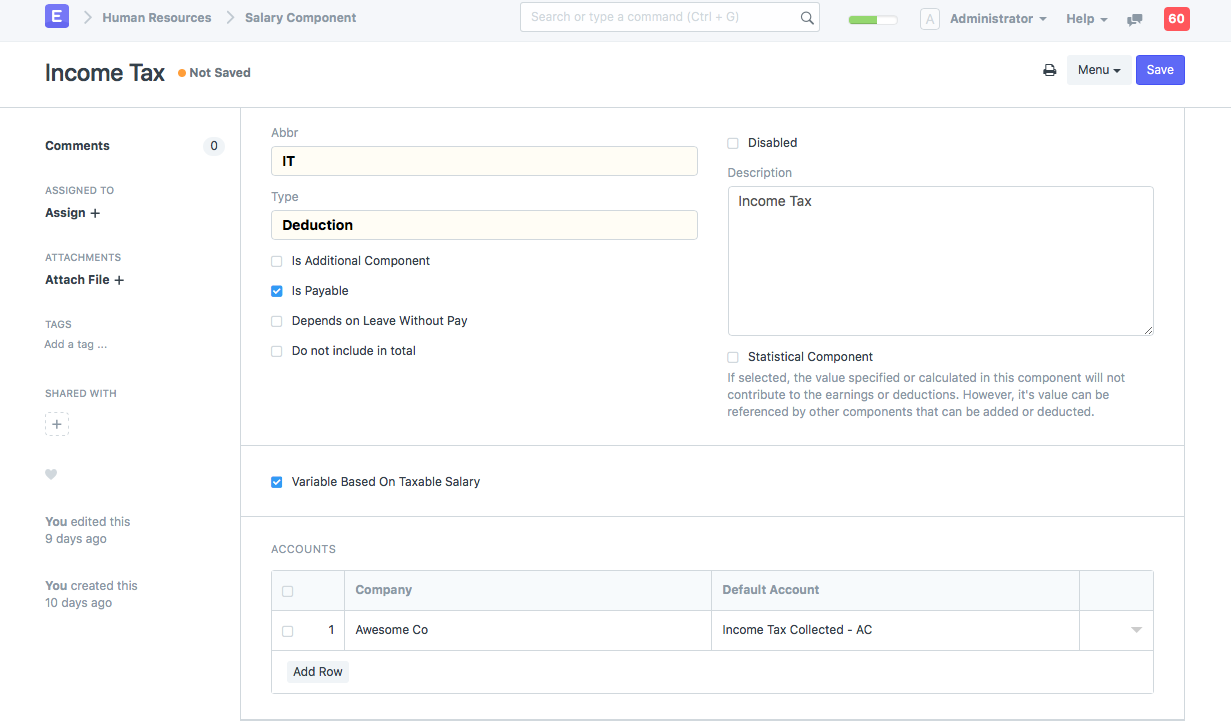
- If you enable Variable Based On Taxable Salary, the component will be treated as the default Tax deduction component. The income tax slab associated with the employee will be used to determine the tax.
Salary Structure
Salaries are organized and determined depending on earnings and deductions, and this is represented by salary structures. With salary structures, organizations can:
1.preserve competitive compensation levels with the outside labor market,
2.maintain internal pay disparities between positions,
3.Acknowledge and honor variations in responsibility, aptitude, and performance, and control compensation costs.
In India, the typical elements of a compensation system are:
Basic Salary: A taxable base income that typically accounts for no more than 40% of CTC
Home Rent Allowance (HRA): The HRA ranges from 40 to 50 percent of the base pay.
Special Allowances: Covers the balance of the salary, which is typically less than the basic salary, which is fully taxable.
Leave Travel Allowance: The non-taxable sum that the employer pays to the employee for time off or family visits inside of India.
When an employee retires or leaves the company, the employer typically pays a large payment as a gratuity.
PF: Money saved up for an emergency or old age. The employee provident fund receives an automatic deduction of 12% of the base pay.
Medical Allowance: The company covers the employee's related medical costs. Up to Rs. 15,000, it is tax-free.
Bonus: A taxable portion of the CTC that is typically provided to employees once a year in the form of a lump sum and is dependent on both their own performance and that of the organization as a whole.
Employee Stock Options (ESOPs): ESOPS are free or discounted shares provided to employees by the corporation. The main goal of this is to improve staff retention.
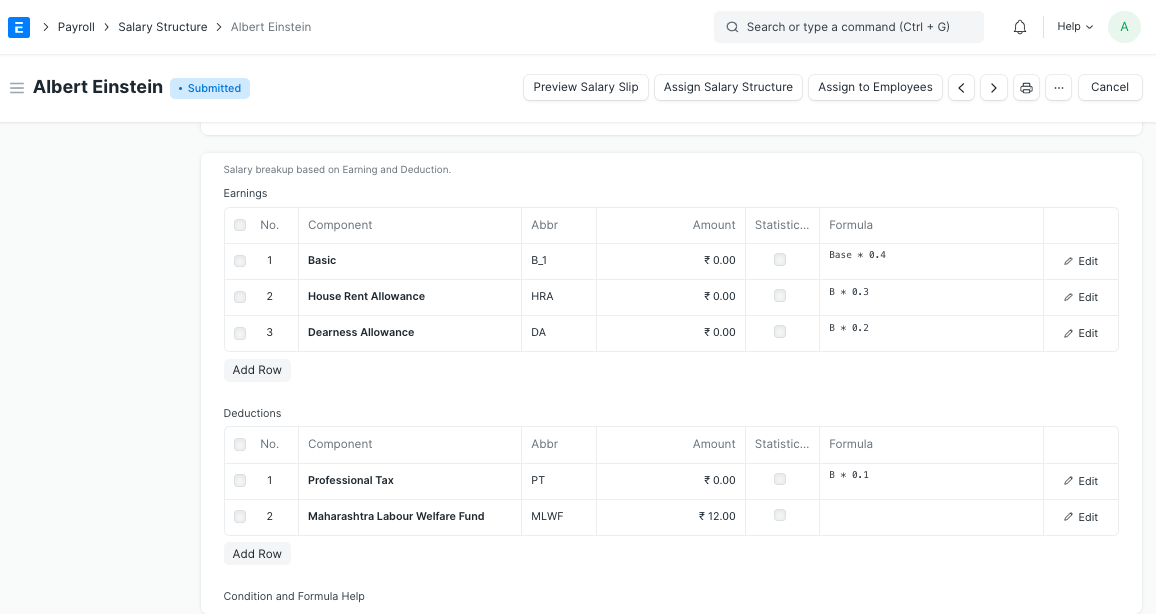 A submitted Salary Structure
Creating a New Salary Structure
Go here: to start a new Salary Structure.
Human Resources > Payroll Setup > Salary Structure > New Salary Structure
The revised salary structure includes:
1.Set the firm, letterhead for printing wage slips, frequency of payroll, and other details for the salary structure.
2.Specify the date when this will be effective (Note: An employee can only have one "Active" salary structure at any given time).
3.Create the Leave Encashment Amount per Day, which will be the sum paid to Employees upon requests for Leave Encashment.
4.The maximum amount that employees may receive as flexible components is known as the Max Benefits Amount.
Salary Slip Based on Timesheet
If your payroll system is timesheet-based, you can use the salary slip.
1."Salary Slip Based on Timesheet" should be checked.
2.Enter the hourly rate after choosing the salary component (Note: This salary component gets added to earnings in Salary Slip)

Earnings and Deductions in Salary Structure
You can choose the earnings and deductions components in the "Earnings" and "Deductions" tables. By default, the condition and formula set up in the Salary Component will be replicated, but you can alter this if necessary. Also, you might wish to choose the Base component from the Earnings table. Keep in mind that Salary Structure Assignment should be specified with the eligible amount for each employee.
You can determine the values of Salary Components depending on, if the condition and formula for any of the earnings or deductions are not configured in Salary Component.
Condition and Formula
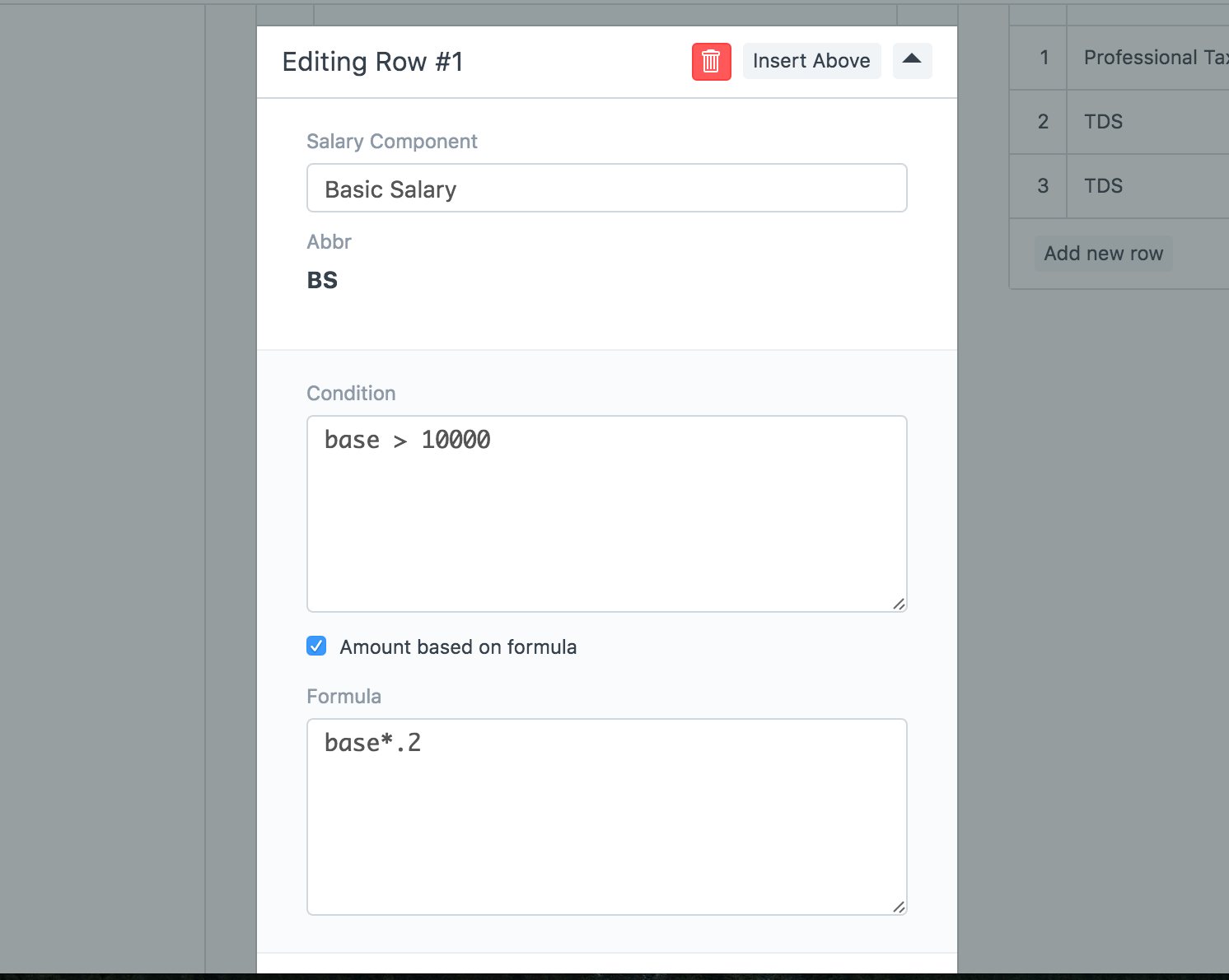
Condition and Amount
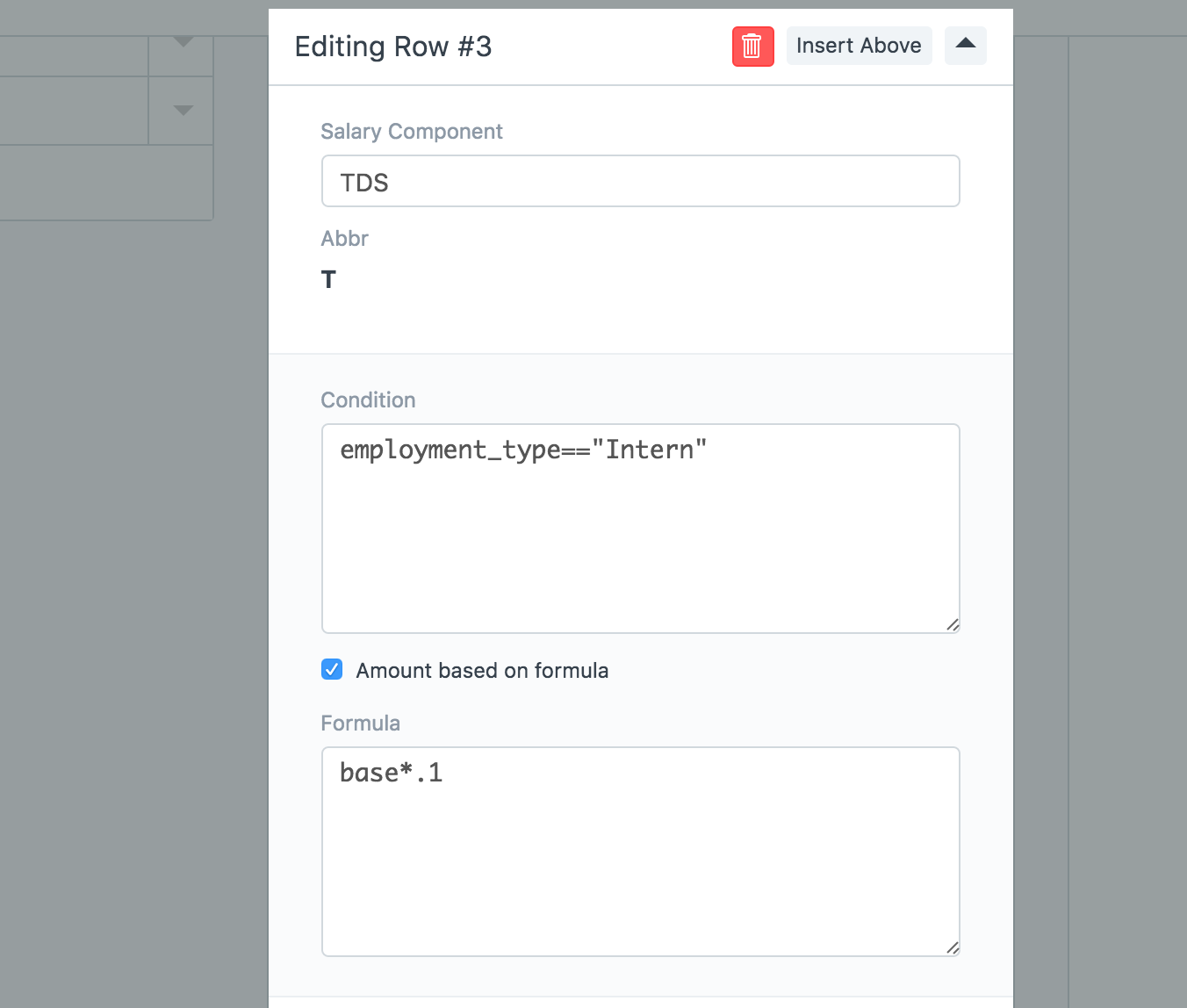
In prerequisites and equations,
- Use field "base" to enter the employee's base wage.
- Use the abbreviations for Salary Component. as in BS for Basic Salary.
- Enter the employee's name in the field. Employment Type, for instance, for employment type
Account Details

- For the Salary Slips that will be produced using this Salary Structure, choose the Method of Payment and Payment Account.
Preserve the Payroll System, please
Leave Without Pay (LWP)
When an employee exhausts their allotted leave time or takes a leave without approval, they are on leave without pay (LWP) (via Leave Application). In the Earning Type and Deduction Type fields, you must select "Apply LWP" in the column if you want ERPNext to automatically deduct salary in the event of LWP. The percentage of LWP days divided by the total number of working days for the month determines the amount of the pay drop (based on the Holiday List).
Leave the LWP unchecked in all of the Earning Types and Deduction Types if you don't want ERPNext to manage LWP.
Salary Structure Assignment
You can select the base pay that each employee is entitled for and create a compensation structure with the help of salary structure assignment. Setting the base salary for each assignment is crucial because it will serve as the starting point for calculations made in accordance with the Salary Structure.
Go to in order to create a new Salary Structure Assignment.
Human Resources > Payroll > Salary Structure Assignment > New Salary Structure Assignment
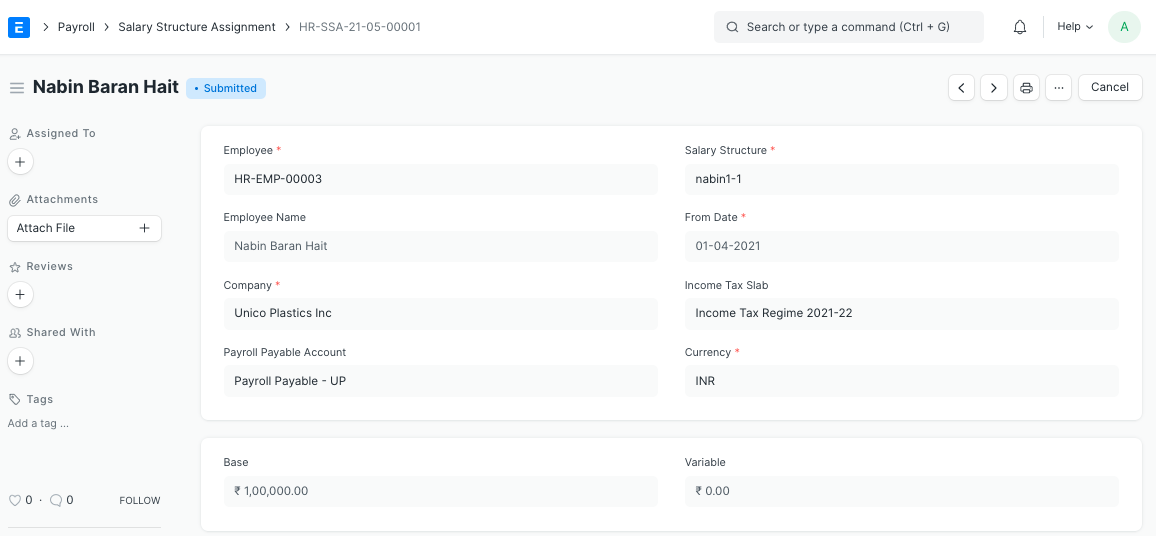
Processing Payroll
For employees under a department, branch, or designate, you have two options for processing payroll: either in bulk or individually by issuing Salary Slips for each employee.
Payroll Processing Using Payroll Entry
With Payroll Entry, you can also produce numerous employee salary slips:
Human Resources > Payroll > Payroll Entry > New Payroll Entry
Payroll Entry
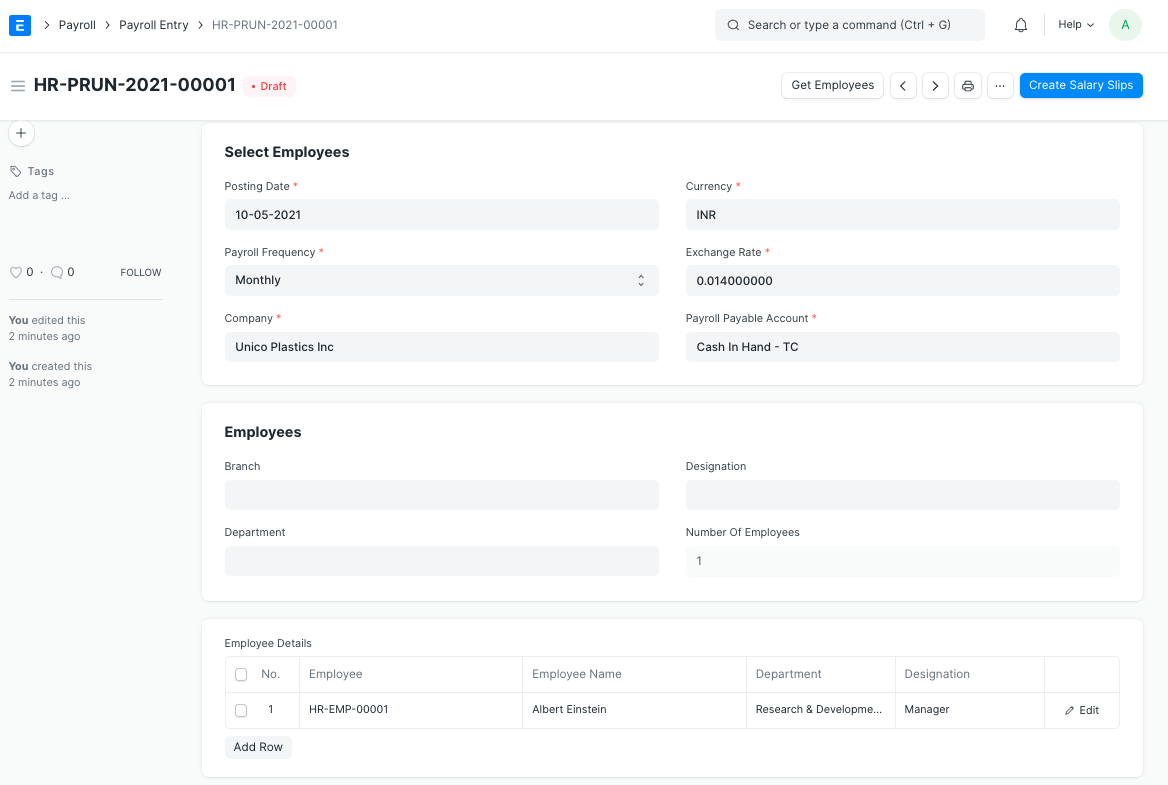
Entry Payroll,
- Choose the company for which the salary slips are to be created. To be more particular, choose from the other fields like Branch, Department, Designation, or Project.
- If you want to process salary slips based on timesheets, check Salary Slip Based on Timesheet.
- Choose the posting date and the payroll frequency for the Salary Slips you wish to produce.
- To view a list of Workers for whose Salary Slips will be generated depending on the chosen criteria, click "Get Employee Information."
- For the paycheck period, provide the Start and Finish dates.
- If you want to deduct taxes from all benefits (Salary Components that Are Flexible Benefits) paid to employees up until the current payroll, you can check Deduct Tax For Unclaimed Employee Benefits.
- Similar to Employee Tax Exemption Declaration, Deduct Tax For Unsubmitted Tax Exemption Evidence enables you to deduct taxes for earnings that were exempted in prior payrolls but the employee did not provide adequate documentation Employee Tax Exemption Proof Submission.
- Choose the Payment Account and Cost Center.
- To create Pay Slip entries for each Active Employee for the selected Time Period, save the form and submit it. The system won't generate any more salary slips if they have already been generated. The form can also be saved as a draft so that the salary slips can be created later.
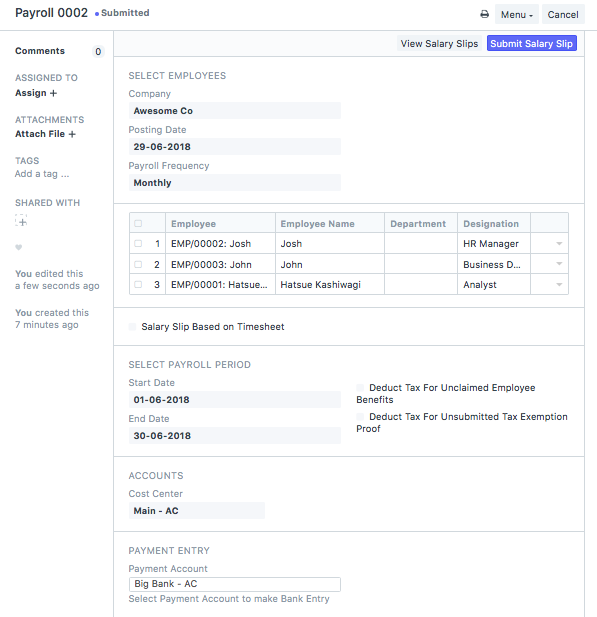
Following the creation of all salary slips, you may utilize See Salary Slips to check that they were made correctly or amend them if you want to add leave without pay (LWP).
Once you've checked them, click "Submit Salary Slip" to submit them all at once.
Note: When salary slips are submitted, the accrual of wages is also recorded in the Payroll Payable account by default.
Booking Salaries in Accounts
The booking of the salaries in your accounts is the last step.
Businesses typically deal with salaries in the strictest of confidence. The bank then distributes the salaries to each employee's salary account. In the majority of cases, the businesses submit a single payment to the bank containing all salaries. As a result, there is only one payment entry in the company's books of accounts, and the individual salaries are protected from anyone having access to the accounts.
The entry for the payment of salaries is a journal entry that debits the total of the earning type salary component and credits the total of the deduction type salary component of all Employees to the default account specified at the salary component level for each component.
Click on - to create your salary payment voucher from Payroll Entry.
Make > Bank Entry
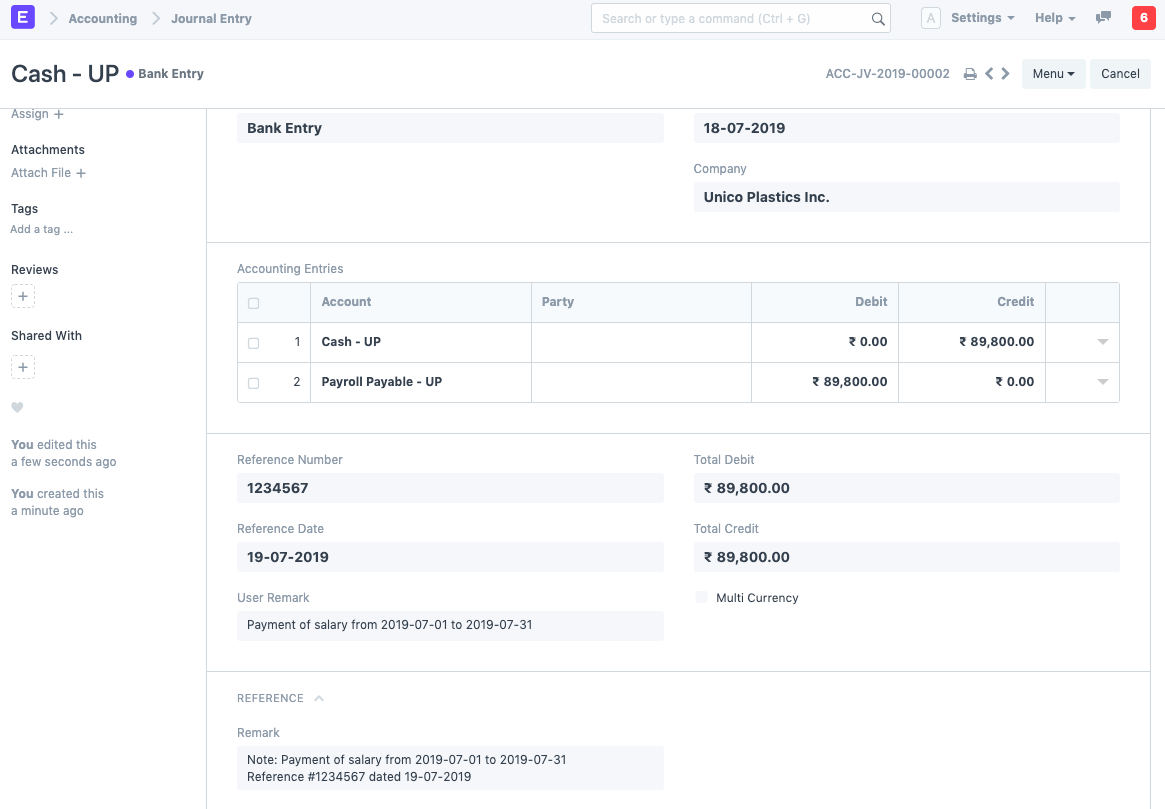
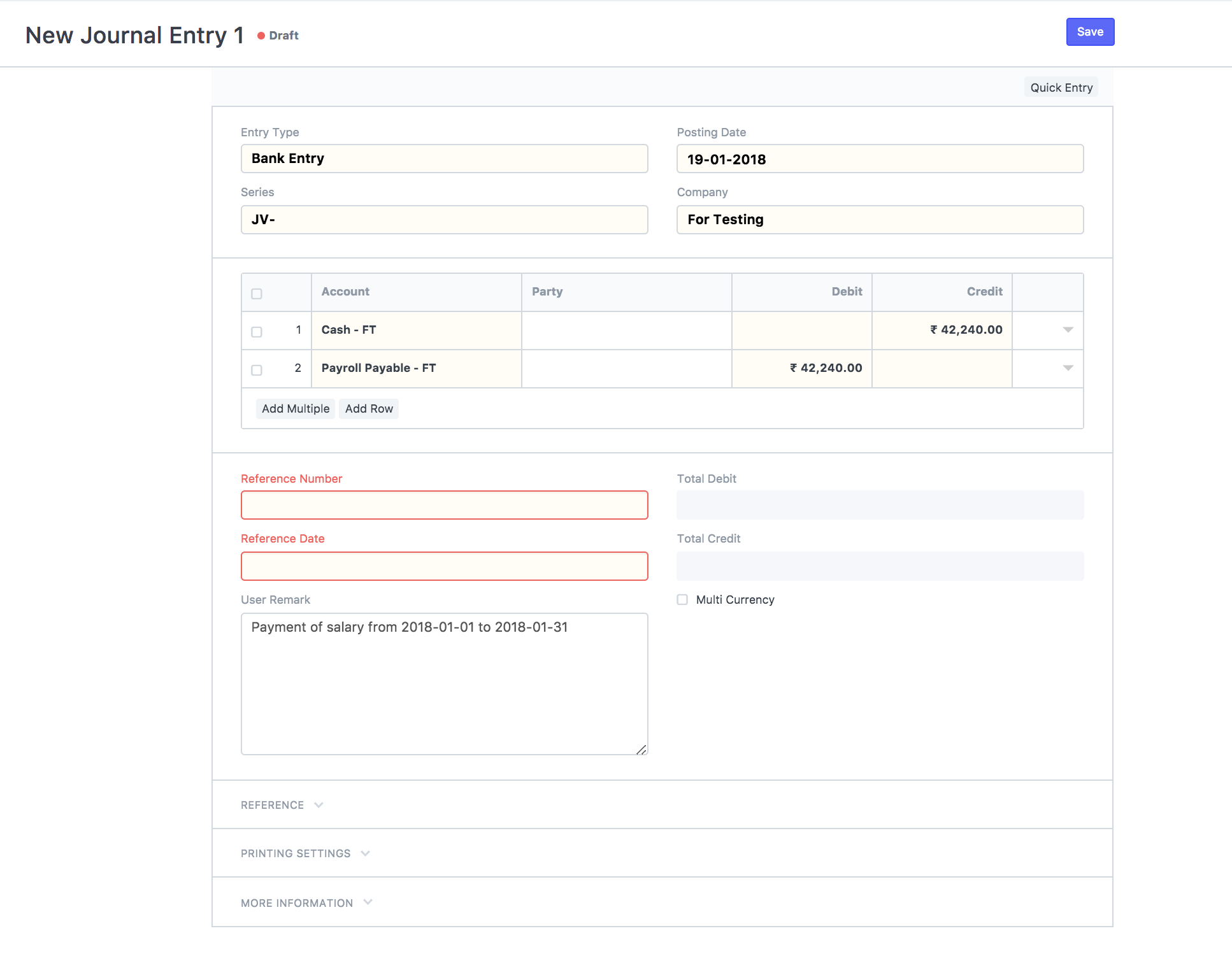
Payroll Entry will direct you to Journal Entry with the appropriate filters so that you may view the prepared draft Journal Vouchers. You must enter the transactions' reference number and date before submitting the journal entries.
It should be noted that ERPNext will create separate draft journal entries for salary components that are flexible benefits and have the Generate Separate Payment Entry Against Benefit Claim checkbox selected.
Creating Salary Slips Manually
You can produce a Salary Slip for each employee when the Salary Structure has been built and allocated to them using Salary Structure Assignment. Go to:
Human Resources > Payroll > Salary Slip > New Salary Slip
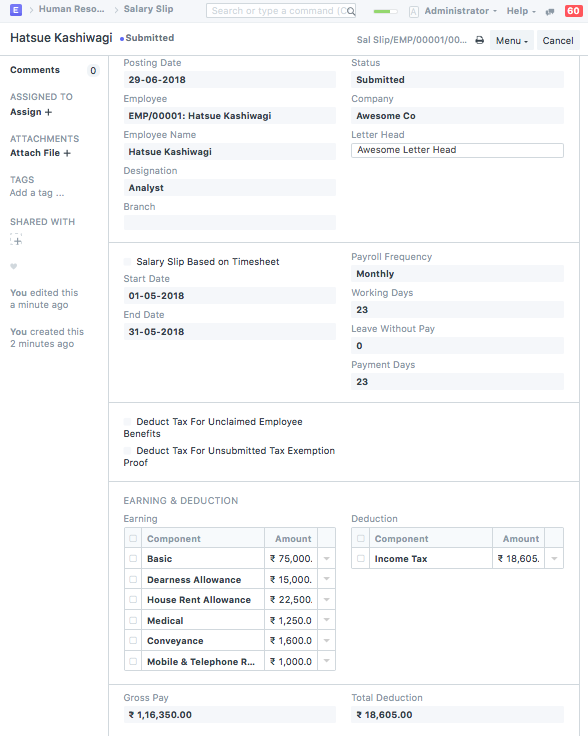
Salary Slip