Fixing Fiscal Year Error
Fixing Fiscal Year Error
While creating any entry, the system verifies that dates (such as Posting Date, Transaction Date, etc.) correspond to the selected Fiscal Year. If not, system through an error message saying:
Date ##-##-#### not in fiscal year
This error message is more likely to appear if your Fiscal Year has changed, but the new Fiscal Year has not yet been set as the default. To ensure that the new Fiscal Year is automatically updated in the transactions, configure your master as described below.
Create New Fiscal Year Only Users with the System Manager's Role Assigned can create a new Fiscal Year. To establish a new Fiscal Year, visit:
Accounting > Accounting Masters > Fiscal Year
Read Fiscal Year to learn more.
Set Fiscal Year as Default
After Fiscal Year is saved, you will find option to set that Fiscal year as Default.
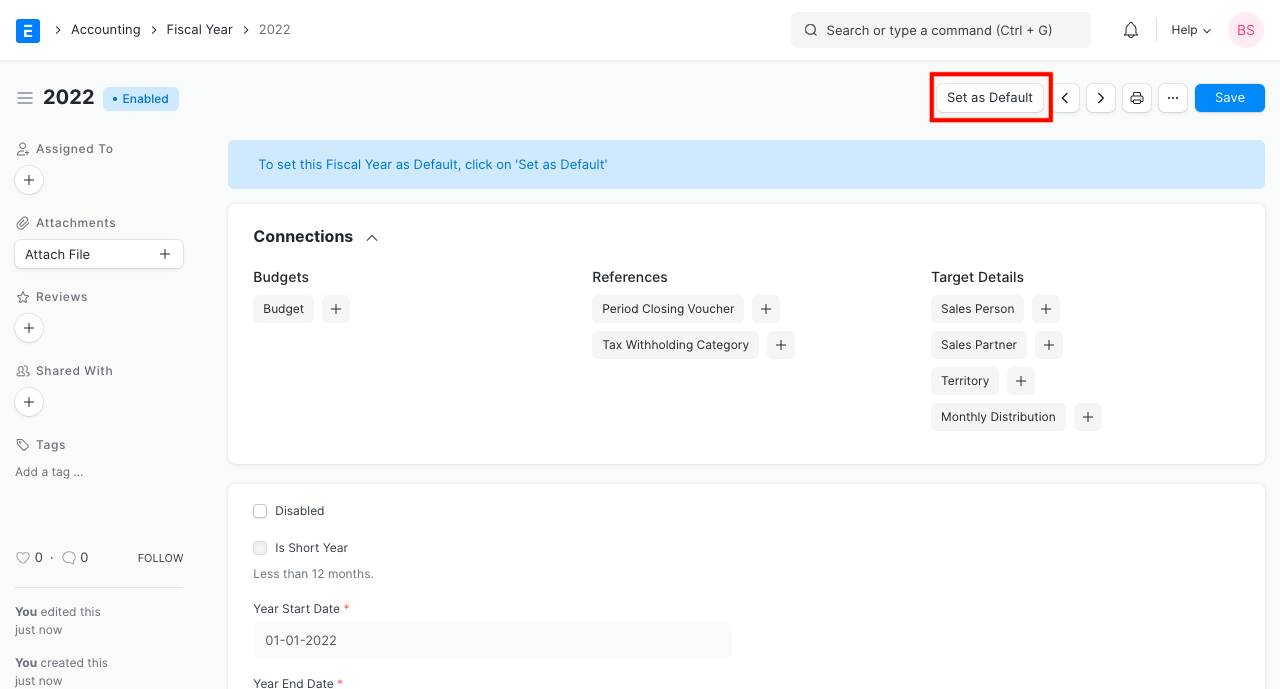
The Global Default option will also receive an update for Default Fiscal Year. Default Fiscal Year can be manually updated from:
Settings > Core > Global Default
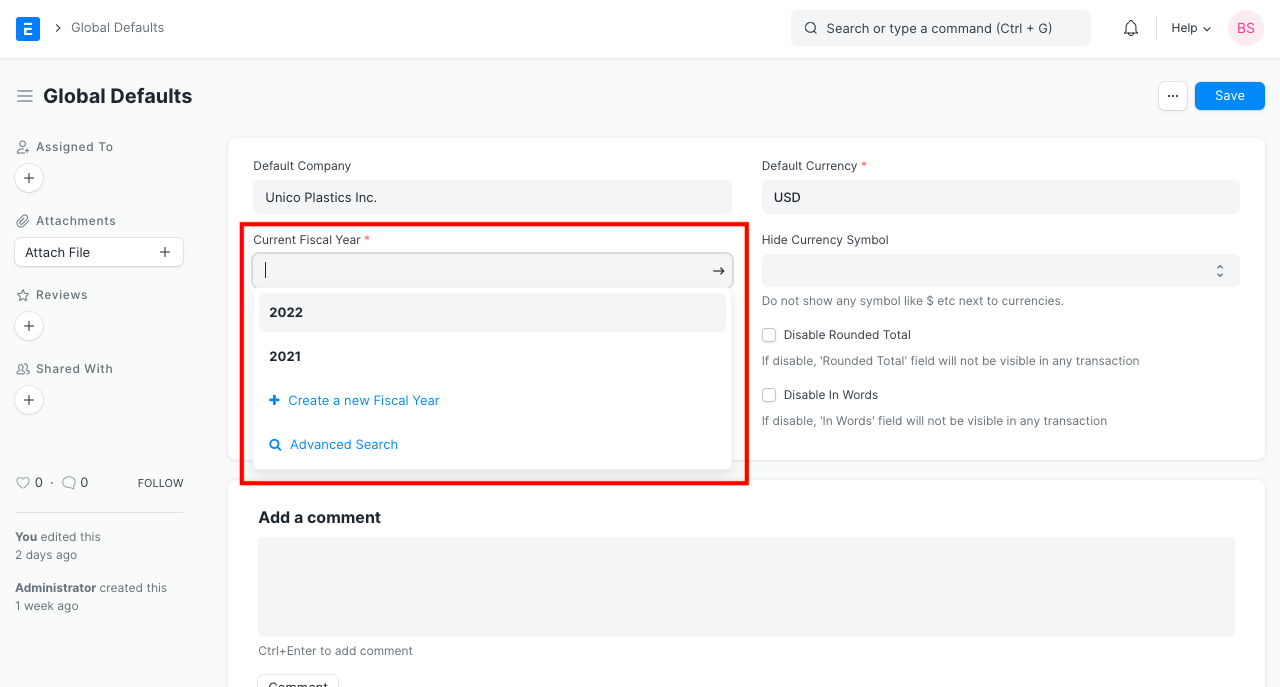
In order to reload your ERPNext account, save Global Default. After that, your transactions will automatically update the default fiscal year.
Note: From the More Details area of transactions, you can manually choose the required Fiscal Year.