Leave Type
Leave Type
The term "Leave Type" describes the categories of leaves that have been granted to an employee for use in submitting leave requests.
Based on the needs of your business, any number of leave types can be created.
Go to: to access Leave Type.
Home > Human Resources > Leaves > Leave Type
1. How to create a Leave Type
Click New under the Leave Type list.
Name the leave type.
Enter Maximum Continuous Days Applicable, Max Leaves Allowed, Applicable After (Working Days) (optional).
Save.
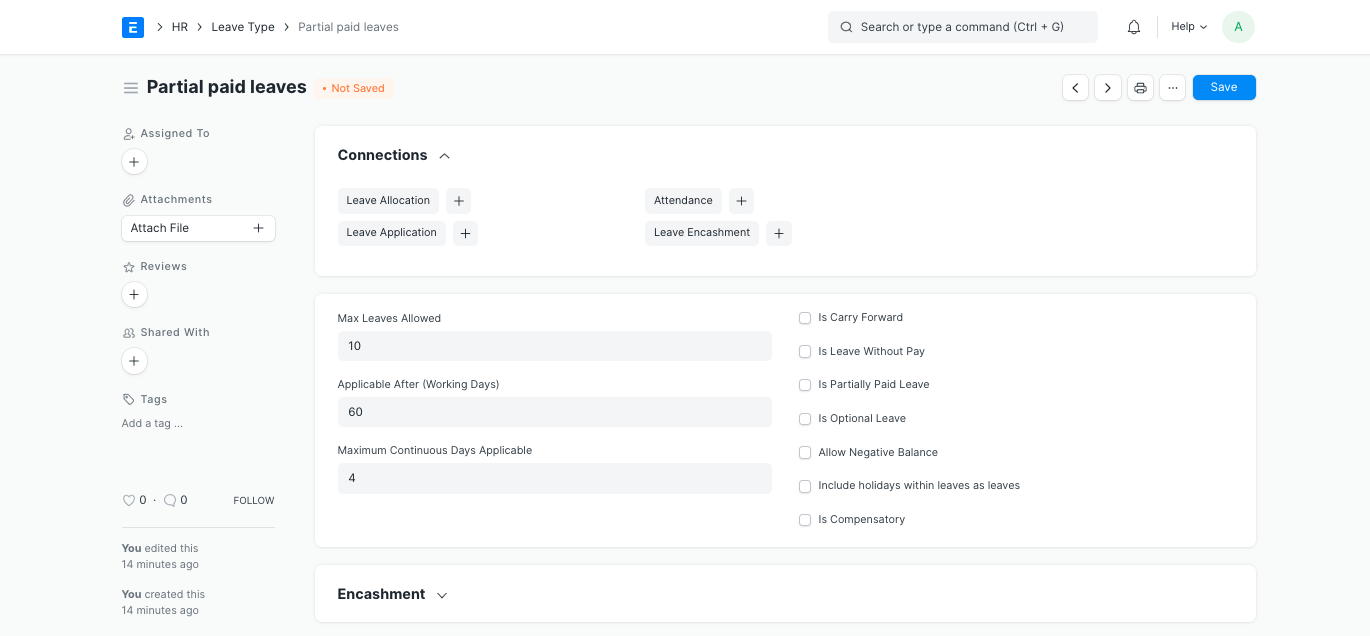
Each field and checkbox in Leave Type is explained in detail below.
Max Leaves Allowed: When constructing the leave policy, this parameter enables you to specify the maximum number of annual allocations for this leave type.
Applicable After (Working Days): Here, enter the bare minimum of working days. Only workers who have worked for this many days or more will be eligible to apply for this specific form of leave. When determining the employee's working days, any further leaves (such as sick leave, vacation time, etc.) taken by them after their joining date will also be taken into account.
Maximum Number of Consecutive Days: It refers to the maximum number of consecutive days for which a given leave type may be used. If an employee takes more time off than allowed, it will be regarded as "Leave Without Pay."
Is Carry Forward: The remaining leaves of this leave type will be carried over to the following allocation period if the box is checked.
Is Leave Without Pay: This guarantees that the Leave Type will be treated as unpaid time off and that salary will be withheld in connection with this Leave Type.
Is Optional: Workers can choose which holidays from a list that the employer has published to use as optional leaves. Any number of holidays may be included in the Holiday List for Optional Leaves, but you can limit the total amount of such leaves by setting the Max Days Leave Allowed field.
Allow Negative Balance: If enabled, even if there is no leave balance, the system will always permit submitting and approving leave applications for the specified leave type.
Allow Over Allocation: The system will permit allocating more leaves than the number of days in the allocation period if the appropriate box is checked.
Include holidays within leaves as leaves: If you want to count holidays that fall within leaves as "leaves," select this option. If the "Include holidays within leaves as leaves" selection for the Leave Type is selected, the system will also take into account Saturday and Sunday as leaves if an employee has requested vacation for Friday and Monday but Saturday and Sunday are weekly off. These days off will be taken away from the overall number of leaves.
Is Compensatory: Leaves that are given in exchange for working overtime or on a vacation are known as compensatory leaves. To designate the leave type as compensatory, check this box. With the Compensatory Leave Request, an employee can request compensatory time off.
Introduced in version 13
- Is Partially Paid Leaves: By checking this box, you can make sure that your leave type will be treated as partially paid and that a portion of your daily wages will be paid via a salary slip. In the "Fraction of Daily Salary Per Leave" area, which displays if this checkbox is selected, you can choose how much of your daily wage is paid on each partial leave day.
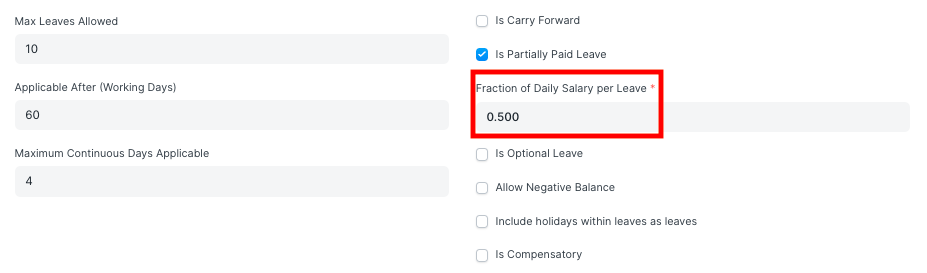
Note: The leave type has two options: partially paid or leave without pay.
2. Features
2.1 Leave Encashment
Workers may be paid cash by their employer for any unused leave that they were awarded during a leave period. You should only specify "Allow Encashment" for those Leave Types that are encashable because not all Leave Types must be encashable.
Reminder: The final month of the leave period is the only time leave can be encashed.
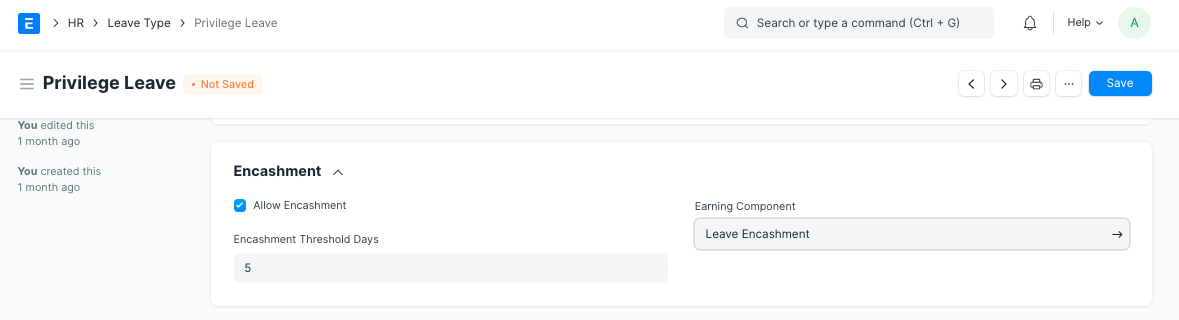
Encashment Threshold Days: This column shows how many leave days the Employees will be unable to use. The employee has the option to enact leaves over and above the specified days.
For instance, suppose there are 10 encashable leaves of a particular type and the employee has 8 left. Just 8 - 5 = 3 leaves are available to the employee if the encashment threshold days are equal to 5.
Earning Component: You can enter the salary component that will be paid to employees as part of their pay in the salary slip in this area.
Reminder: When an employee submits a leave encashment, ERPNext automatically generates an additional salary that will be added to the employee's salary slip during the processing of the subsequent payroll.
2.2 Earned Leave
Earned Leaves are vacation days that an Employee can take after putting in a certain number of hours at the company. By automatically updating Leave Allocation for leaves of this type at intervals determined by "Earned Leave Frequency," the "Is Earned Leave" checkbox will allocate leaves on a pro-rata basis.
An employee, for instance, is permitted 24 privilege leaves per year, which are designated as earned leave with monthly allotments. Under this scenario, at the conclusion of each month, the employee will receive 2 (24 leaves/12 months) privilege leaves. The leave allocation procedure (background task) will round fractional leave amounts to "Rounding" and only allocate leaves based on the maximum leaves allowed for the leave type.
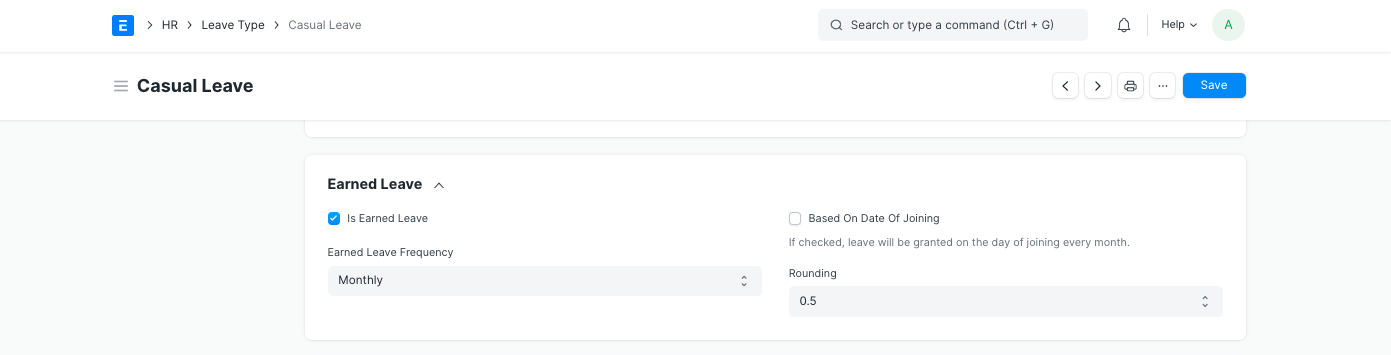
Note: There will be no initial allocation for this leave type. At the end of the month (or according to the 'Earned Leave Frequency' specified), leaves will be updated.
2.3 Default Leave Types
The system has the following pre-loaded leave types:
Leave Without Pay: You may use these leaves for a variety of reasons, including ongoing medical conditions, educational needs, or unavoidable personal obligations. By default, the "Leave Without Pay" checkbox for this leave type is selected. Such leaves are unpaid for the employee.
Privilege leave: Similar to earned leaves, these can be used for travel, family vacations, and other purposes.
Sick leave: If you're feeling sick, you can use these leaves.
Compensatory time off: These are leave days given to workers as payment for overtime. By default, the "Is Compensatory" selection for this leave type is selected.
Casual leave: You can avail of this leave to take care of urgent and unseen matters.