Stock Settings
Stock Settings
On the Stock Settings page, you can establish default options for your stock-related transactions.
1. Item Naming By
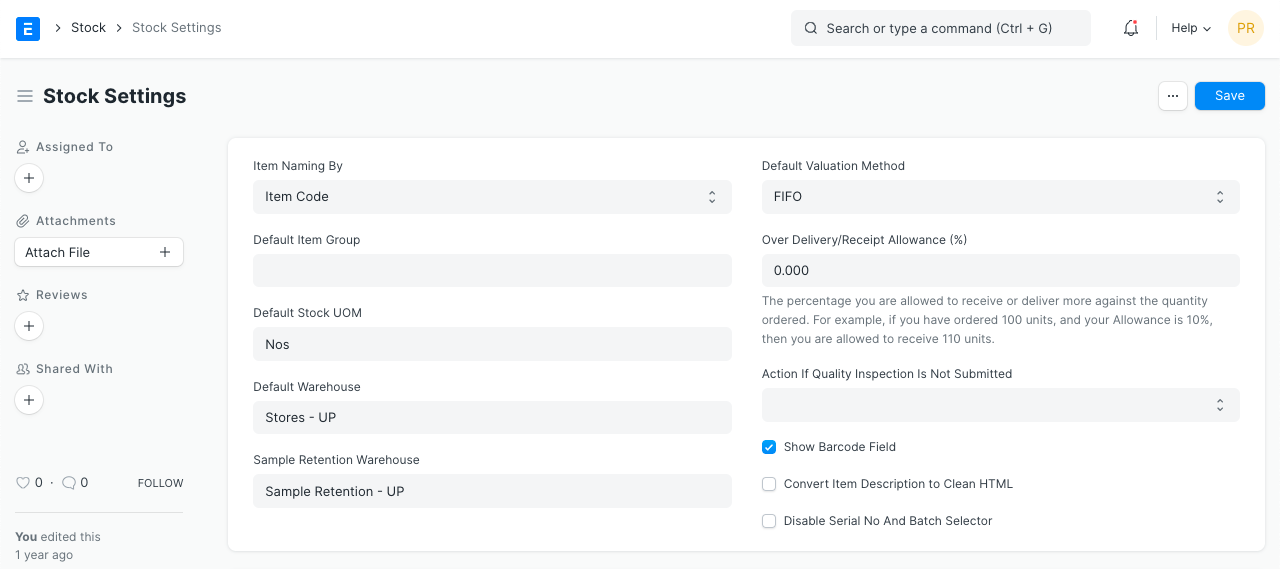
The item name is automatically changed to match the item code given. Choose the "Naming Series" option if you want Items to be called according to a predetermined Naming Series.
2. Defaults
2.1 Default Item Group
This is the item group that will automatically be assigned to newly produced items. The categorisation of items and setting group-wide attributes both benefit from the use of item groups. Visit the Item Group page to learn more.
2.2 Default Stock UOM
Numbers (Nos) is the stock's default unit of measurement; it can be modified from here.
2.3 Default Warehouse
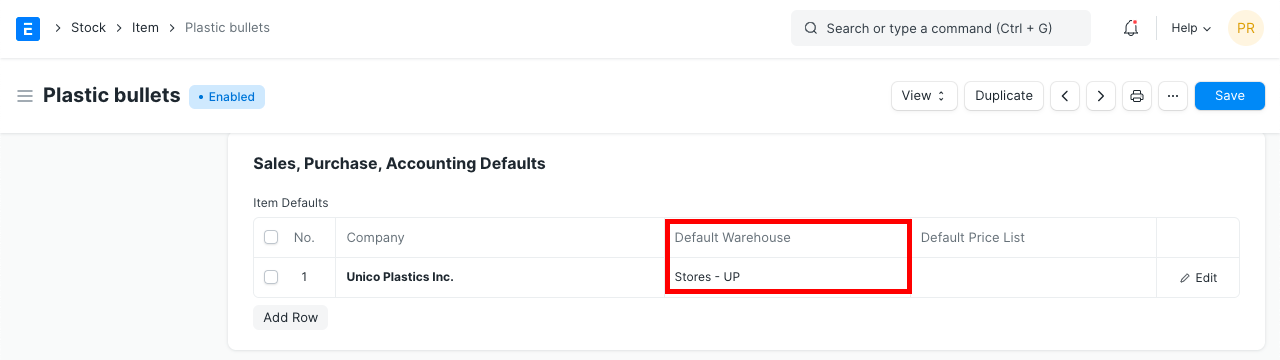
Choose the default warehouse where stock transactions are handled. This will be downloaded into the item master's default warehouse:
2.4 Sample Retention Warehouse
Retentions for samples are kept in this warehouse. Please visit this page to learn more.
2.5 Default Valuation method
First in, first out, or an item's moving average valuation. FIFO is the default approach. New Items will be valued using the Moving Average if you choose that option. While creating new Items in the Item form, you can modify this. The Valuation Method cannot be modified once the Item has been saved. Click here to read more.
3. Limit Percent
This is the percentage of the quantity ordered that you may get or deliver in excess of. As an illustration, if you purchased 100 units and the supplier sent 120, and the percentage was set at 10%, you were permitted to accept 110 units. This has a default setting of 0.
4. Role Allowed to Over Deliver/Receive
Users with this position are permitted to exceed the allowable % for orders they receive or deliver.
5. Show Barcode Field
a field for a product's barcode information. The field won't be visible in the Item form if it is not checked.
6. Convert Item Description to Clean HTML
The majority of the time, descriptions are copied and pasted from Word or PDF files and include numerous embedded styles. Your invoices or quotations' Print view will be messed up as a result.
Checking "Convert Item Description to Clean HTML" in Stock Settings will cure this. By doing this, you can be confident that the descriptions of the Items will be updated when you save them.
You can uncheck this box to take control of your description, views, and the ability for HTML to be embedded.
7. Auto insert

7.1 Auto insert Price List rate if missing
By enabling this, an item's price will be immediately added to its price list when it is used for the first time. This cost is obtained from the "Rate" that was specified during the initial transaction involving the item. Whether you're utilizing a Purchase or Sell transaction will affect the Pricing List.
Keep in mind that, if not already present, the item price will only be automatically added on the initial transaction.
If option is left unchecked, the item price will be the "Standard Selling Rate" entered when the item was created.
7.2 Automatically Set Serial Nos based on FIFO
First in, first out ordering will be used to automatically assign serial numbers to stock. In transactions like purchase/sale invoices, delivery notes, etc., the serial numbers will be set automatically.
8. Allow Negative Stock
As a result, stock items will be able to display negative values. Utilizing this choice will rely on your use case. For instance, stock transaction entries are made over the weekend or at the end of the month. To continue with your purchase/sale transaction records in this situation, negative stock must be enabled.
You can enable negative stock for certain goods rather than worldwide.
9. Set Qty in Transactions based on Serial No Input
The number of products will be decided upon in accordance with their serial numbers. For instance, if the user adds serial numbers A001, A002, and A003 to the transaction, the system will set the quantity as 3.
10. Automatic Material Request
10.1 Raise Material Request when the stock reaches re-order level
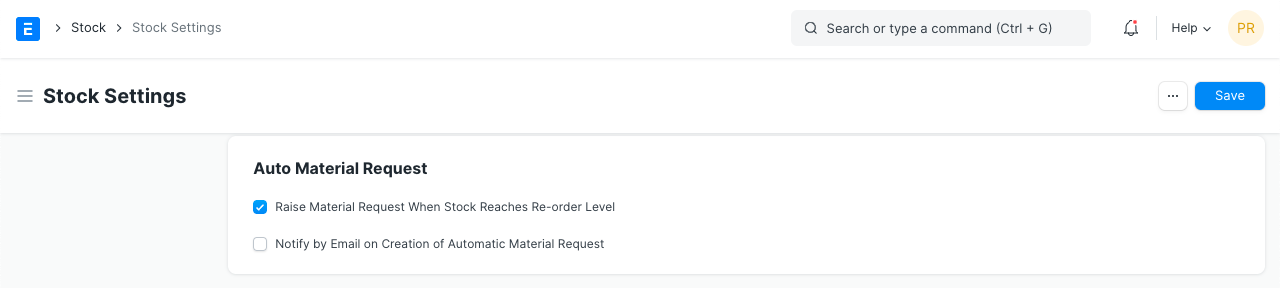
If you want to guarantee a steady supply of raw materials or products and prevent shortages, this option can be helpful. When the amount of stock hit the reorder level specified in the item form, a Material Request will be raised automatically.
10.2 Notify by Email on the creation of automatic Material Request
When an automatic Material Request is produced, an email will be sent to the user with the role of "Purchase Manager" to let them know.
11. Inter Warehouse Transfer Settings
11.1 Enable customer warehouse for material transfer from Delivery Note and Sales Invoice
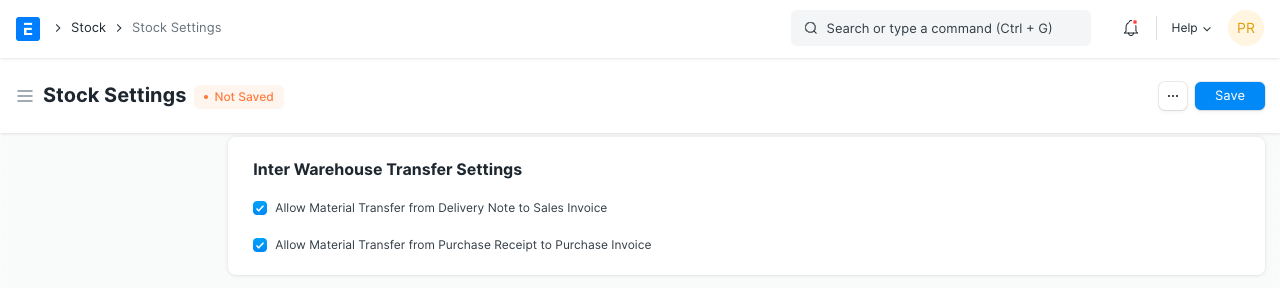
When a delivery note needs to be submitted for a material transfer, this option can be helpful. For instance, if there are legal requirements that each time material is transferred, taxes must be imposed. With a transaction like a delivery note, it is simpler to manage than in the stock entry.
11.2 Enable supplier warehouse for material transfer from Purchase Receipt and Purchase Invoice
This option, like the one above, is helpful when a material transfer must be presented as a purchase receipt.
Please see this article for further information on how to transport materials between warehouses using delivery notes and purchase invoices. Transfer of Materials from Delivery Note
12. Freeze Stock Entries
After this date, the User won't be able to post any stock.
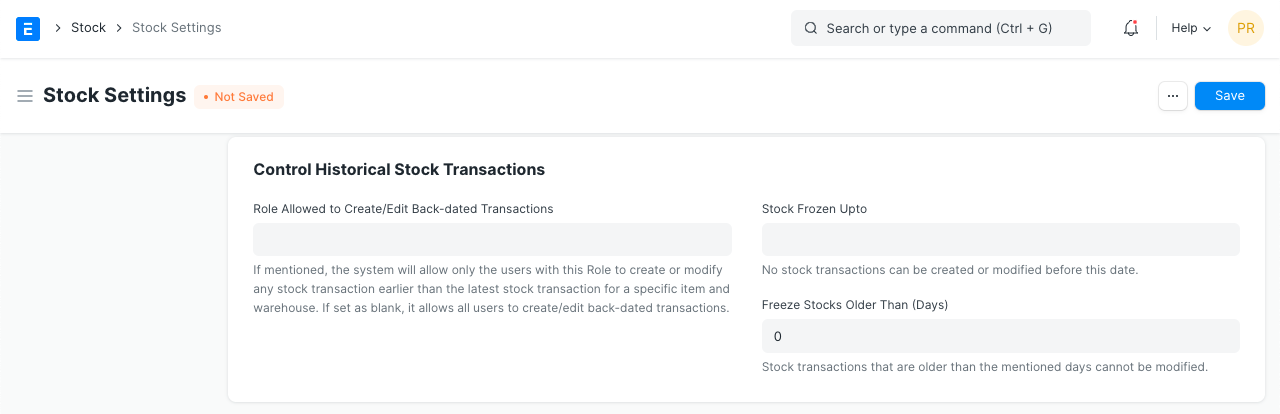
Stock Frozen Upto: a deadline after which stocks must be frozen.
Freeze Stocks Older Than [Days] Stocks will be frozen after x days. Based on the item's creation date, this is determined.
Role Allowed to edit frozen stock: Your chosen position will have access to edit frozen stock.
13. Batch identification
Setting for a Name Series to be used globally to identify stock batches This can be modified in the Item DocType.