Delivery Note
Delivery Note
When a package is sent from the company's warehouse to the client, a delivery note is created.
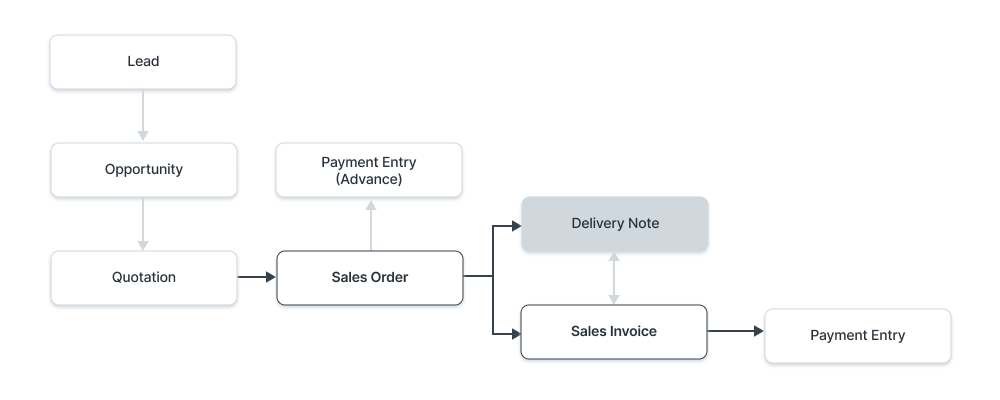
The transporter is typically supplied with a copy of the Delivery Notice. The list of items included in the shipment is included in the delivery note, which also updates the inventory. A Sales Invoice can be generated immediately from a Sales Order, and the Delivery Note is an optional step.
Go here: to access the list of Delivery Notes.
Home > Stock > Stock Transactions > Delivery Note
1. Prerequisites
It is suggested that you first create the following before making and using a delivery note:
- Sales Order
Note: Starting with version 13, we included an immutable ledger, which modifies the guidelines for erasing stock entries and publishing transactions for stock that was purchased in the past. Find out more here.
2. How to create a Delivery Note
A purchase receipt and a delivery note have extremely similar entries. By selecting Create > Delivery from a "Submitted" Sales Order (that has not yet been sent), it is often created.
Use these procedures to manually construct a Delivery Note (not advised):
Click New from the Delivery Note list.
By selecting "Get Items from > Sales Order," the Customer and Item information can be retrieved.
The UOM and Rates will be automatically retrieved.
Publish and save.
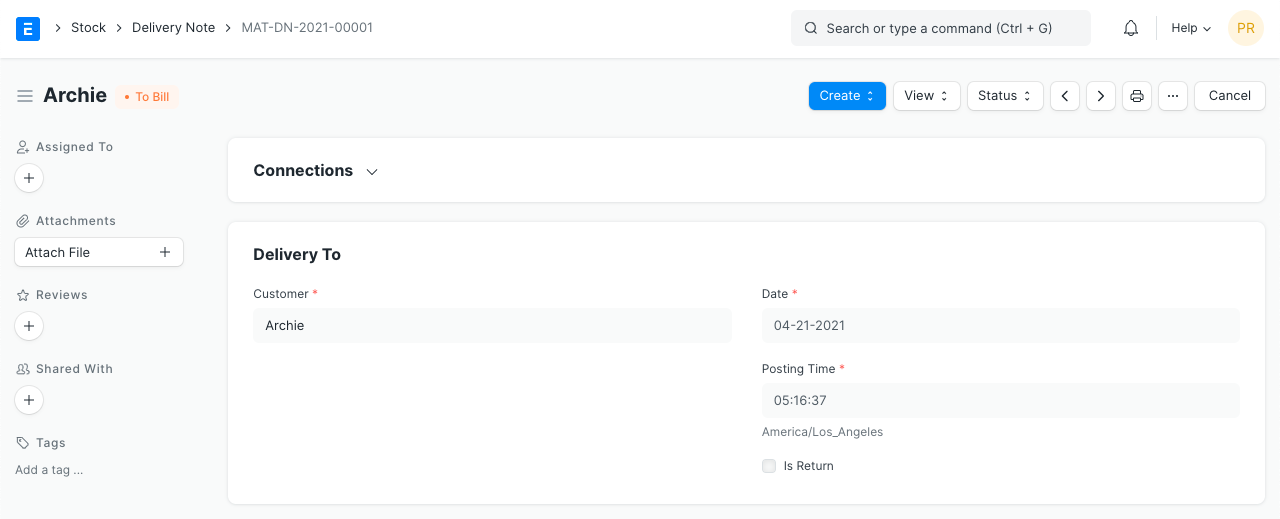
Click Obtain Items from > Sales Order to retrieve items from a sales order. By doing so, a popup will appear, allowing you to look up and choose a sales order.
Once you construct the Delivery Note from your Sales Order, you will see that all the details regarding unshipped Goods and other information are transferred over.
The current date and time are set when you create the Delivery Note, but you can change them.
2.1 Statuses
The following statuses are possible for a delivery note:
Draft: The system has not yet received a draft that has been stored.
To Bill: Unbilled through a sales invoice as of yet.
Completed: All the items were sent and submitted.
Return Issued: The items have all been received back.
Cancelled: The Delivery Notice was canceled.
Closed: The Close's goal is to control short-closing. For example, your Customer ordered for 20 qty but closed at 15 qty. The remaining 5 is not to be sent or billed.
2.2 Partial Deliveries
The quantities can be altered when you create a Delivery Note from a Sales Order. Hence, you can generate two Delivery Notes in two weeks if the Sales Order calls for the delivery of 10 items, but you only deliver 5 this week and the other 5 the following week.
2.3 From Pick List
Bulk delivery notes can be made from pick lists as well. Click Create -> Delivery Note from a Choose List that has been submitted.
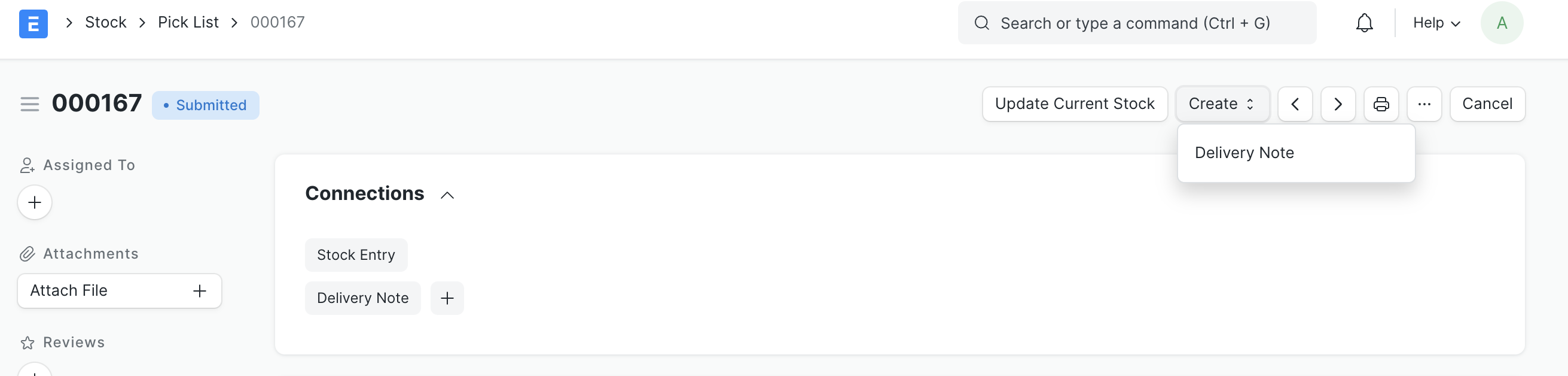
For each Sales Order, a separate Delivery Note would be created and categorized by the customer. A separate DN would be created for each item on the Select List if it is not linked to a Sales Order (added manually by the user).
3. Related Actions
3.1 Customer Purchase Order DetailsThe customer's purchase order number can be entered here for reference.
3.2 Address and Contact
Shipping Address: The address of the customer to whom the items will be mailed.
Contact Person: If the Customer is an organization, add the Contact person in this field.
The following information can be included for GST for India:
- Customer GSTIN
- Place of Supply
- Billing Address GSTIN
- Company GSTIN
- Company Address Name
You can attach several Contacts or Addresses to the customer because Contacts and Addresses are maintained independently.
3.3 Currency and Price List
The Deliver Note's currency setting allows you to specify how it will be sent. If specified in the Sales Order, this is typically fetched. The item prices will be obtained from a pricing list if one has been set. The Pricing Rules established in Accounts > Pricing Rule will be disregarded if Ignore Pricing Rule is checked.
To learn more, read about Price Lists and Multi-Currency Transactions.
3.4 Warehouses
Set Source Warehouse: The Goods will be sourced from here and shipped to the Client.
To Warehouse: A typical sales scenario would involve the item leaving your warehouse and getting to the customer. However, specify a Warehouse here if you want to keep the sample stock.
3.5 Items Table
Barcode: By employing barcodes, you may track Things.
The Item Code, name, description, Image, and Manufacturer will be fetched from the Item master.
Scan Barcode: If you have a barcode scanner, you can add items to the items table by scanning their barcodes. For further information, consult the barcode tracking documentation for products.
Discount and Margin: A percentage-based discount or the item's full price can be applied to individual items. For further information, see Applying Discount.
Rate: If the Rate is specified in the Price List, it is obtained, and the total Amount is computed.
Item Tax Template: A specified tax amount can be applied to this specific item by using an item tax template. Please visit this page to learn more.
If specified in the item master, the item's weight data per unit and weight UOM are obtained.
Warehouse and Reference: It displays the Warehouse from which the Products are shipped to the customer. Moreover, a Sales Order will be displayed if the creation sequence for this Delivery Note was "Sales Order > Deliver Note."
Batch No and Serial No: You must enter the Serial Number and Batch in the Items table if your item is serialized or batch-produced. Each Serial Number must be entered on a separate line, and you may enter as many Serial Numbers as the amount in a single row.
It will display the "Available Qty at From Warehouse," the "Available Batch Qty at From Warehouse," and the "Installed Qty." See the Installation Note page for more information regarding installation.
Note: For these functionalities to function, the Item must be serialized or batch processed. A popup where you can enter the serial numbers will display if the item is serialized.
The sum is going to be deducted from the Expense Account. By selecting "Accept Zero Valuation Rate," you can submit the Delivery Note even if the item has a zero valuation rate. This may be a result of a mutual understanding with your Supplier or a sample item.
Accounting Dimensions make it possible to assign several Dimensions to each transaction without having to add new Cost Centers. To get started, you must first construct Accounting Dimensions; for more information, see this page.
Page Break will print this item with a page break immediately before it.
3.6 Tracking Quality Inspection
You must change the "Quality Inspection" field if you have specified in your item master that certain Items must have Quality Inspections recorded. If you don't change the "Quality Inspection," the system won't let you "Submit" the Delivery Note.
Quality Inspections can be documented in Delivery Notes after Inspection Criteria are enabled in the Item form for Sales and a Quality Inspection Template is attached there.
3.7 Taxes and Charges
The Sales Order will be used to retrieve the Taxes and Charges.
To learn more about taxes, go to the Sales Taxes and Charges Template page.
Below the table, the total taxes and fees will be shown.
Visit this page to learn how to automatically add taxes using a Tax Category.
For a correct valuation, ensure that all of your taxes are accurately marked in the Taxes and Charges table.
Shipping Rule
A shipping rule aids in determining an item's shipping cost. The price will often rise as shipping distance increases. Visit the Shipping Rule page to learn more.
3.8 Additional Discount
This area can be used to set any additional discounts that apply to the entire order. This discount may be based on either the Gross Total (i.e., after taxes and fees) or the Net Total (i.e., before taxes and fees). A percentage or dollar amount may be used to apply the additional discount. For further information, see Applying Discount.
3.9 Terms and Conditions
There may be specific Terms and Conditions in Sales/Purchase transactions on the basis of which the Supplier supplies goods or services to the Customer. The Terms and Conditions can be applied to transactions, and they will show up when you print the paper. Click here to learn more about the terms and conditions.
3.10 Transporter Information
The transporter information can be added if you contract out the movement of the Items to the place of delivery. Drop shipment is not the same as this.
Transporter: the Vendor who will provide the Good to your Client. To choose the Supplier here, the Supplier master's transporter function needs to be enabled.
Driver: Here, you can add a Driver who will operate the vehicle.
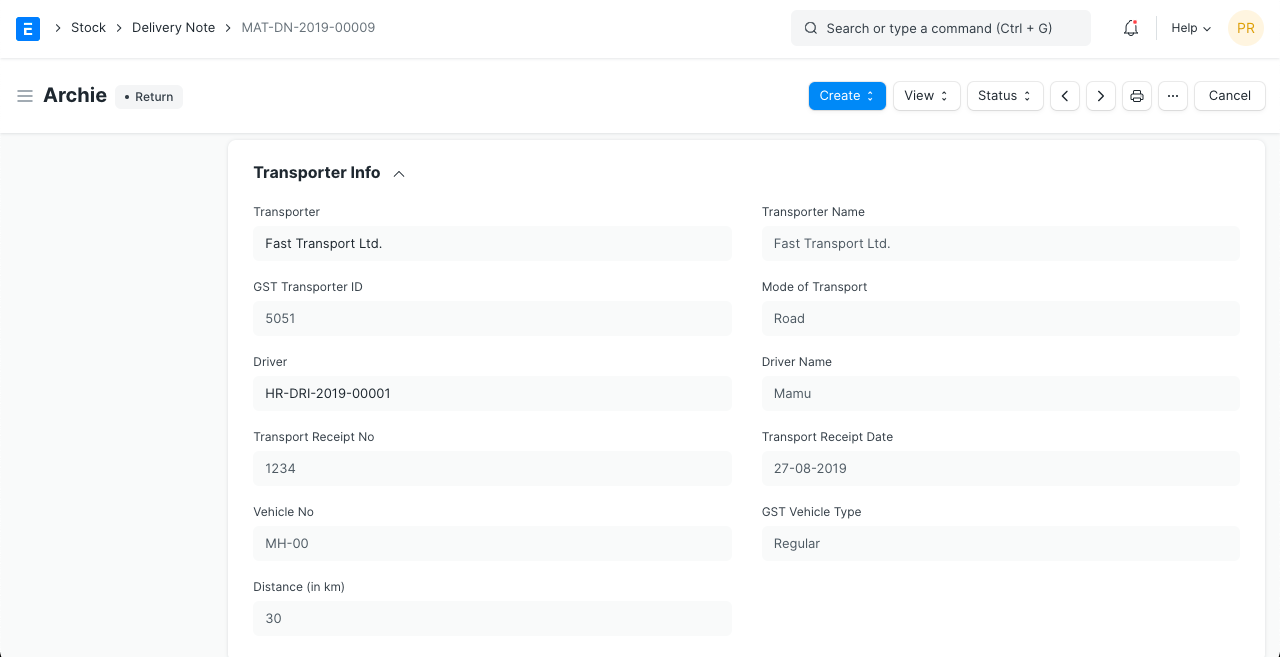
The following information can be noted:
Distance in km
Mode of Transport whether road, air, rail, or ship.
For India, GST: * GST Transporter ID
Transport Receipt No
Vehicle No The GST Vehicle Type can be changed
Both the Driver Name and the Transport Receipt Date will be retrieved.
3.11 More Information
For tracking purposes, the Delivery Note can be connected to the following:
- Project
- Campaign
- Source
3.11 Printing Settings
Letterhead
Your Delivery Note can be printed on letterhead from your business. Find out more here.
The option "Group same items" will group identical items added more than once to the Items table. When you print, this will be evident.
Print Headings When printing the document, you can also alter the heads on the purchase receipt. This can be accomplished by choosing a Print Heading. Go to Home > Settings > Printing > Print Heading to add new print headings. Find out more here.
When the item is expensive, there are additional checkboxes that allow you to print the delivery note without the price. When printing, you can also arrange related items into a single row.
3.12 Status
This page displays the document's state and the installation progress. You can type in any additional delivery instructions right here.
3.13 Commission
If the sale was made through one of your sales partners, you can provide the sales partner's compensation information here. Typically, this is taken from the sales order.
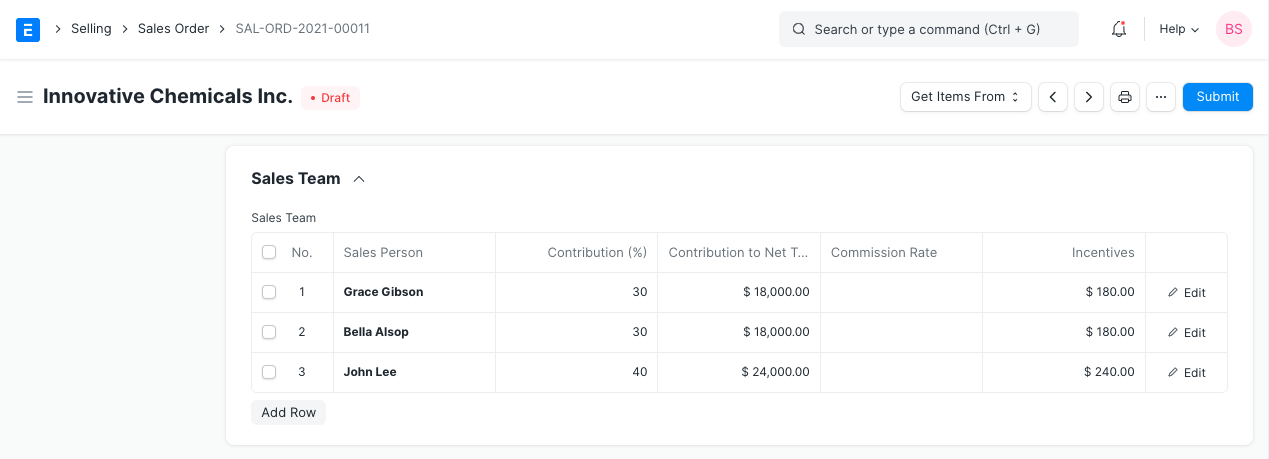
3.14 Sales Team
Sales Persons: You can add numerous salespeople who may have contributed to this deal using ERPNext.
This is typically retrieved via a sales order, as in:
3.15 Shipping Packets or Items with Product Bundle
ERPNext will automatically construct a "Packing List" table for you based on the sub-Items in that Item if you are delivering Items that contain a Product Bundle.
If your items are serialized, you will need to update the serial number in the "Packing List" table for Product Bundle type items.
3.16 Packing Items into Cases, for Container Shipment
You can use the Packing Slip to divide your Delivery Note into smaller pieces if you are shipping it in a container or by weight. Visit this website to learn more about a packing slip. go to:
ERPNext will make sure that the quantities in the Packing Slip do not exceed the amounts in the Delivery Note even if you produce numerous Packing Slips for your Delivery Note. Keep in mind that only when a delivery note is at the draft stage can you make a packing slip from it.
3.17 After Submitting
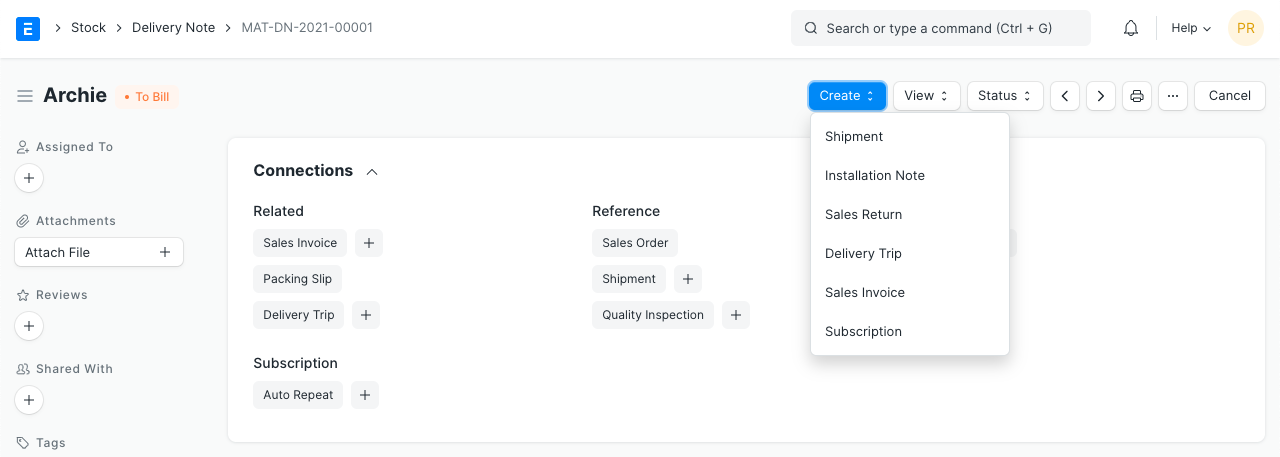
A Stock Ledger Entry is created for each item and the stock is updated when the Delivery Note is filed. The Sales Order's Pending Quantity has been changed (if applicable).
The following choices will be displayed on the dashboard:
Installation Note
Sales Return
Delivery Trip
Sales Invoice
Advice: To prevent the issuance of Delivery Notes without a Sales Order:
3.18 Returning a Sales Order
A return record can be made after a Sales Order has been delivered using a Delivery Note in the event that the Customer returns the Item. Visit the Sales Return page for further information.
3.19 Skipping Delivery Note
Enable the feature for it in Selling Settings if you choose to create a Sales Invoice instead of a Delivery Note following a Sales Order.