Employee Transfer
Employee Transfer
Internal mobility takes the form of an employee transfer, in which the employee is moved from one position to another, typically at a different site, division, or unit.
With the Employee Transfer document, you may record employee transfers to various companies or departments in ERPNext.
Go to: to access Employee Transfer.
Human Resource > Employee Lifecycle > Employee Transfer
1. Prerequisites
- Employee
- Department
2. How to create a Employee Transfer
1.Decide on the Employee.
2.Decide on a Transfer Date.
3.In the event that the employee is transferred to a different company, choose the New Company (optional).
4.Set the Current and New values for the Property in the Employee Transfer Information table.
5.Moreover, a new Employee ID can be created for the moved Employee by checking the "Create New Employee" checkbox.
Note: If the box next to Generate New Employee ID is ticked, the old employee will be designated as relieved and a new employee will be created with the property modifications in the Transfer Details table. It is necessary to manually create the new Employee's leave allocations from the leave period.
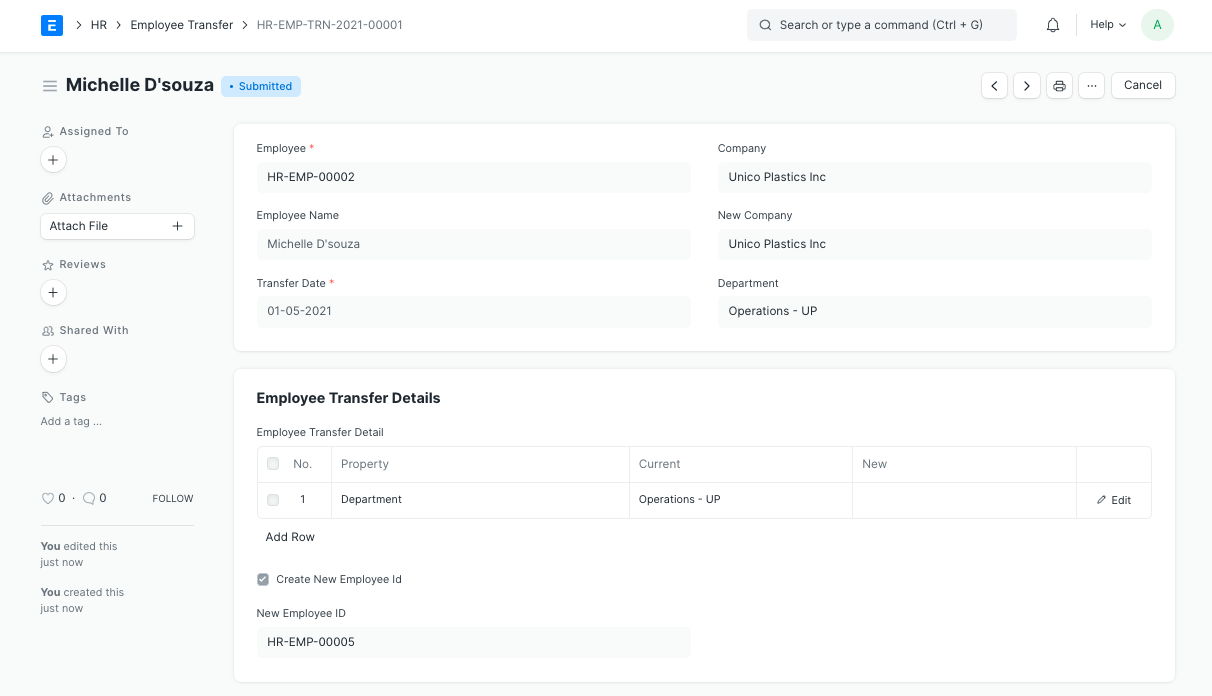
Reminder: Transfer documents may be filed before to or following the transfer date. After submission, Employee will be updated with all modifications made to the Transfer Details table.