Payment Terms
A Payment Term helps to set a schedule according to which payments will be made.
A particular payment slab is defined by a payment term. For instance, paying 50% upon shipping and 50% upon receiving the item. Your company's payment terms can be saved on Geer ERP and added to any papers involved in the sales/purchase cycle. Geer ERP will accurately update every General Ledger entry.
The Payment Terms form in Geer ERP only specifies share percentages. The Payment Terms Template makes it simple to apply the real payment schedule.
You can use Payment Terms in the following documents:
- Sales Invoice
- Purchase Invoice
- Sales Order
- Purchase Order
- Quotation
To access Payment Term go to:
Home > Accounting > Accounting Masters > Payment Term
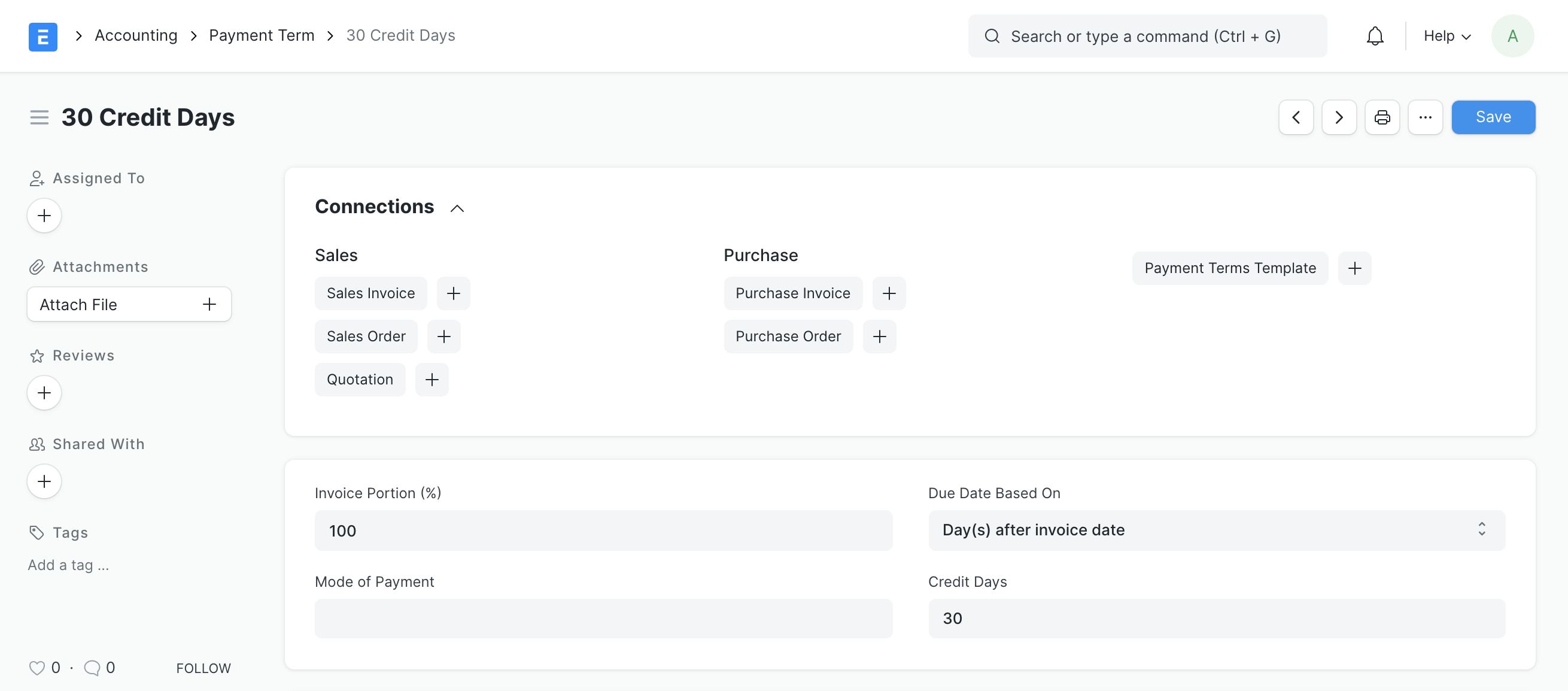
1. How to create a Payment Term
- Click New from the Payment Term list.
- Give the Payment Term a name (such as 50% post-shipment).
- Start with the invoice section. The share will equal 50% of the invoice amount if you enter 50.
- Choose a Due Date category.
- Enter the number of days after which the balance must be paid under Credit Days.
- Save.
The fields are explained as follows:
- Payment Term Name: This Payment Term's name.
- Due Date Based On: the methodology used to determine the Payment Term's due date. This is determined X days after the invoice or order's posting date. Three choices are available:
- Day(s) after invoice date: The due date must be determined in days from the invoice's posting date. For instance, the due date will be 27 if 7 is inputted on date 20.
- Day(s) after the end of the invoice month: The amount due should be determined in days from the last day of the month the invoice was generated. For instance, if the current month's due date is the 30th and the number 7 is entered, the following month's due date will be the 7th.
- Month(s) after the end of the invoice month: The date that the payment is due must be estimated in months from the final day of the month that the invoice was produced. For instance, if 3 is entered on January 20th, the due date will be March 20th.
- Invoice Portion: the portion of the total invoice amount that should be covered by this payment term. The amount will be calculated as a percentage, with 50 representing 50% of the invoice/order total.
- Credit Days (optional): Depending on the choice selected in the Due Date Based On column, the number of days or months credit is permitted. Zero denotes the absence of credit.
- Description: A brief explanation of the Payment Term (optional)
1.1 Setting up Discount on Early Payments
You can set up discounted payment conditions so that a certain amount or percentage of the invoice value will be discounted if payment is made within the allotted time. The discount configuration is defined by the following fields:
- Discount Type: Percentage is the default. Alternately, you might use Amount.
- Discount: Using a percentage or monetary value (10% or $5k, for example).
- Discount Validity Based On: This field functions similarly to the field in the previous section that is based on the due date.
- Discount Validity: the amount of time, in days or months, that the discount is good for in relation to the invoice date (eg. 10 days after the invoice date).
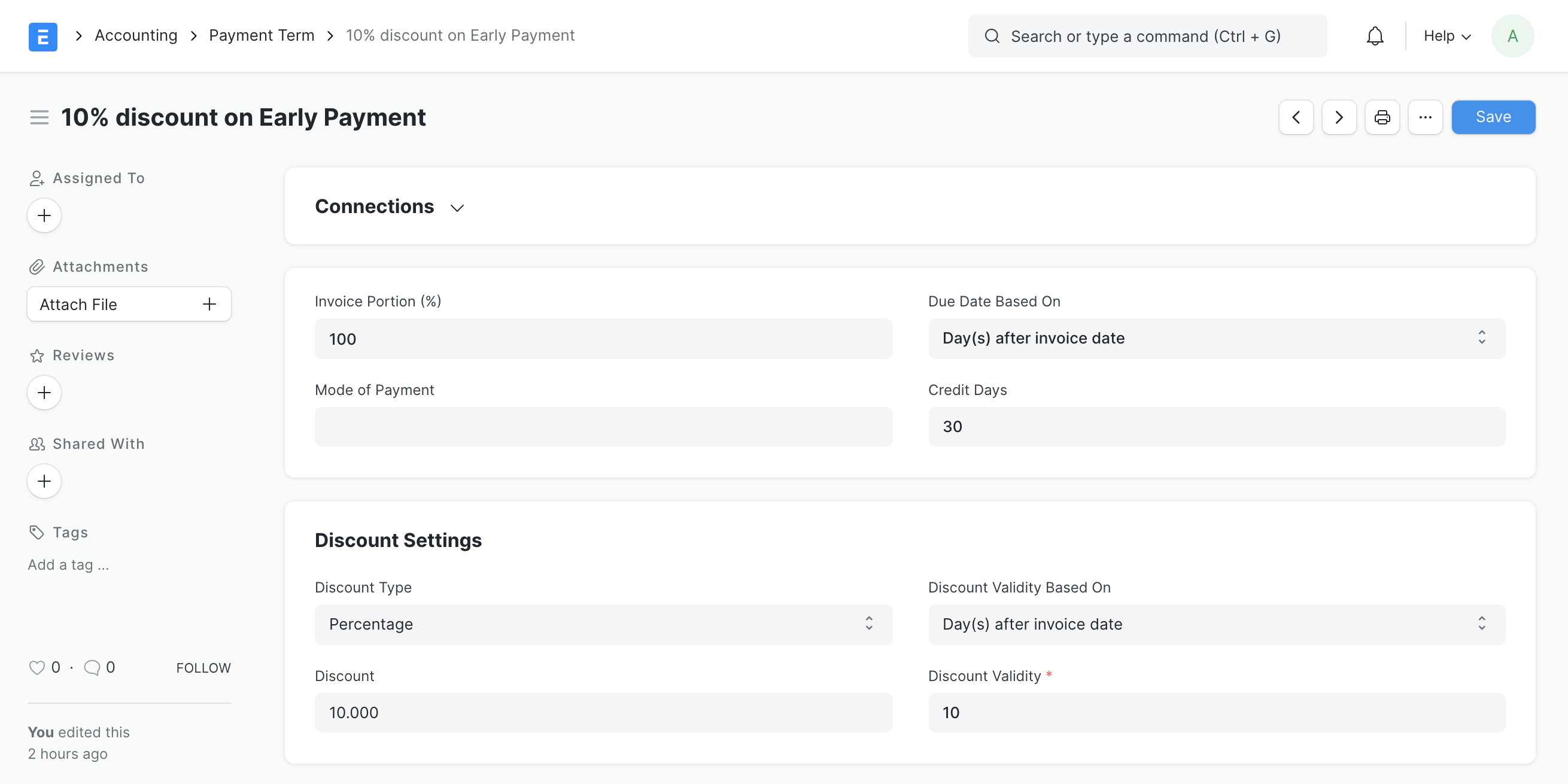
The discount will be automatically applied when you create a payment against an invoice that has the Payment Terms linked to it.
1.2 Payment Terms in Converted Documents
The linked Payment Term(s) will be copied when documents in the sales/purchase cycle are converted or copied. The Due Date in the Payment Terms will be according to the Quotation when a Sales Order is created from a Quotation; this needs to be modified.
You can also establish a Payment Terms Template for convenience and then quickly select it again.
1.3 Adding Payment Terms To Documents
You can use the Payment Terms Template in sales and purchase transactions once you've created it. The payment schedule will be established, with a Due Date for each payment slab, based on the value defined for Payment Terms and transaction value.
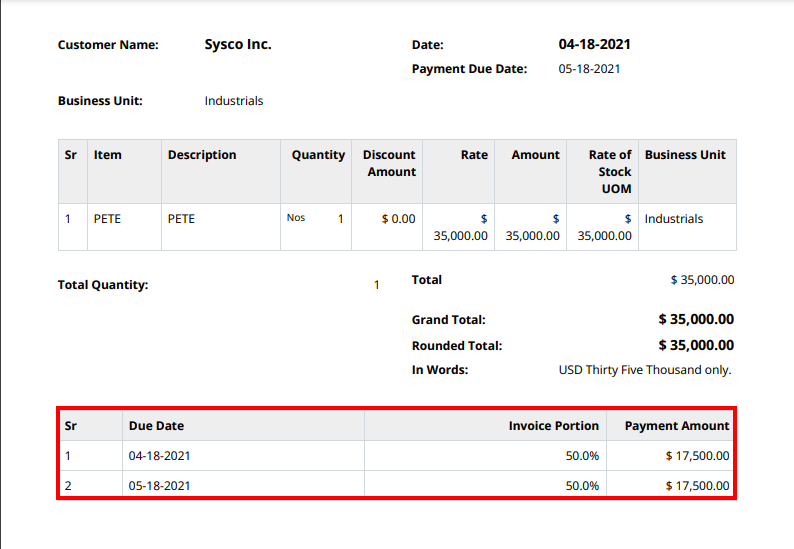
Note: Using the Print Format Builder, the Payment Schedule can be displayed in the Print View.