To Do
A To Do list is a collection of tasks that one person is expected to complete.
In Geer ERP, a ToDo is a simple tool where you can define the activities to be done. The ToDo List will enlist all the activities assigned to you and by you.
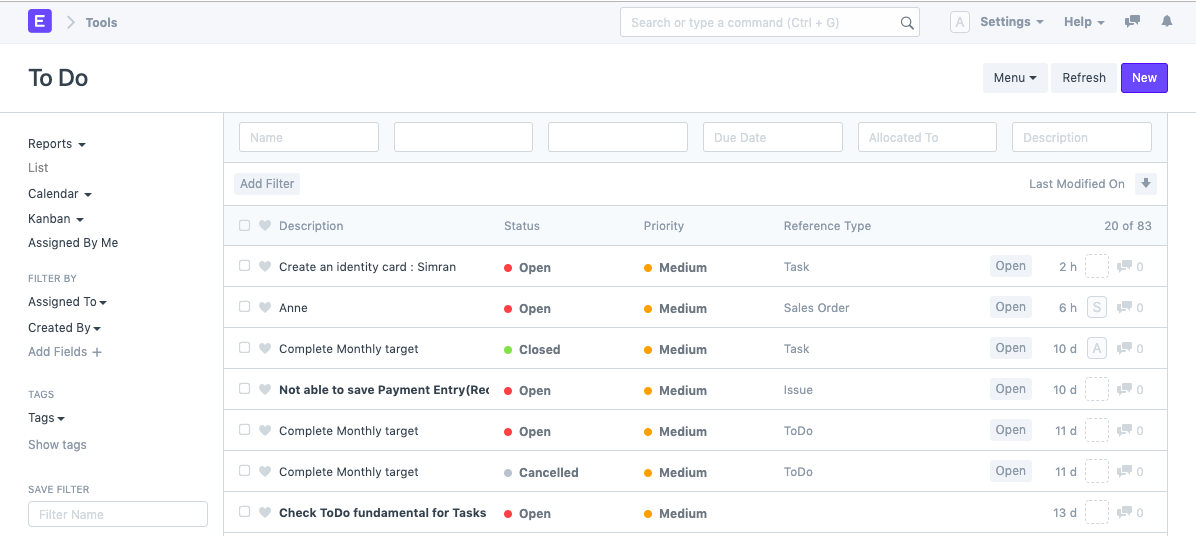
Additionally, whenever any additional Document is sent to you, a To Do is automatically created. Checkout To Create Automatically
Go to To Do to access it.
Home > Tools > To Do
1. How to create a To Do
- Chose new from the To Do list.
- You will be taken to a Quick Entry for To Do page where you must enter the to-description. do's
- Save.
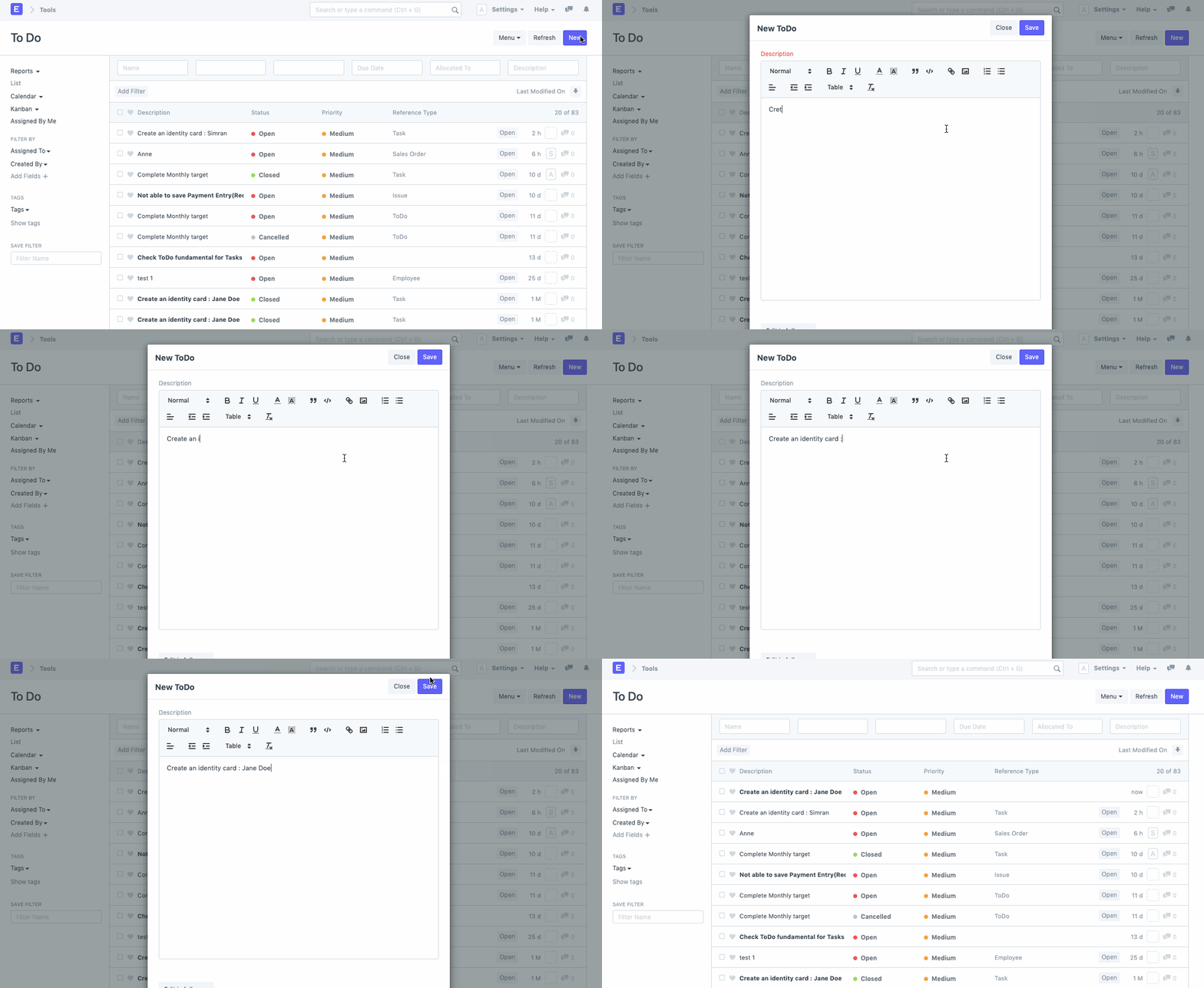
Note: While creating a ToDo using the Quick Entry, the ToDo by default gets assigned to the creator. To prevent the same, and assign it to other users, ensure that you edit the ToDo in Full Page.
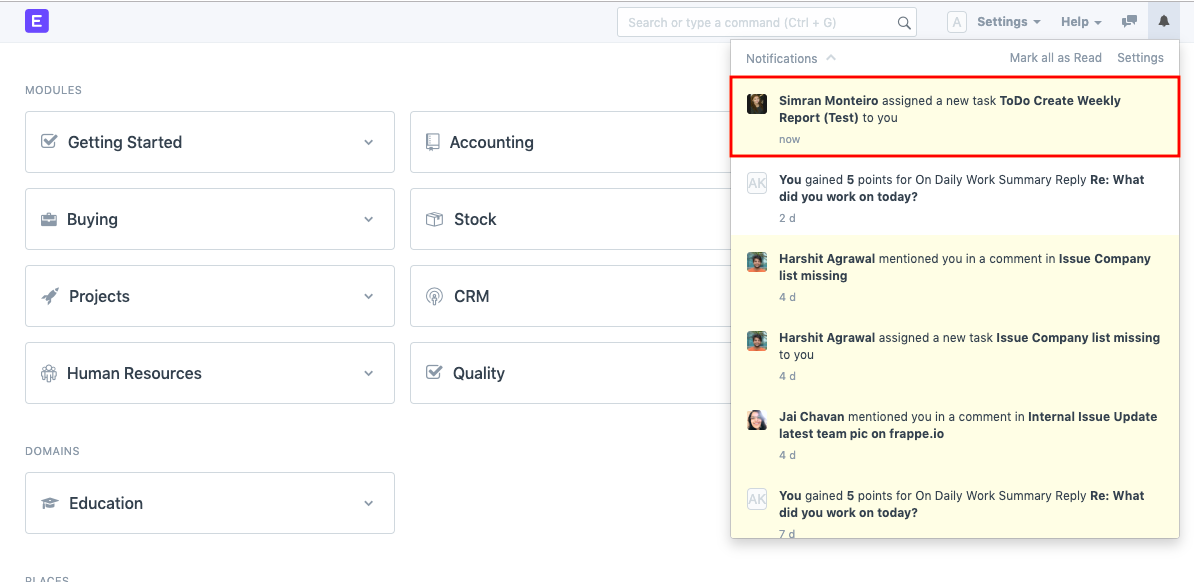
To Do Notification
The designated user will receive a notification once a To Do is generated.
1.1. Additional Options while creating a To Do
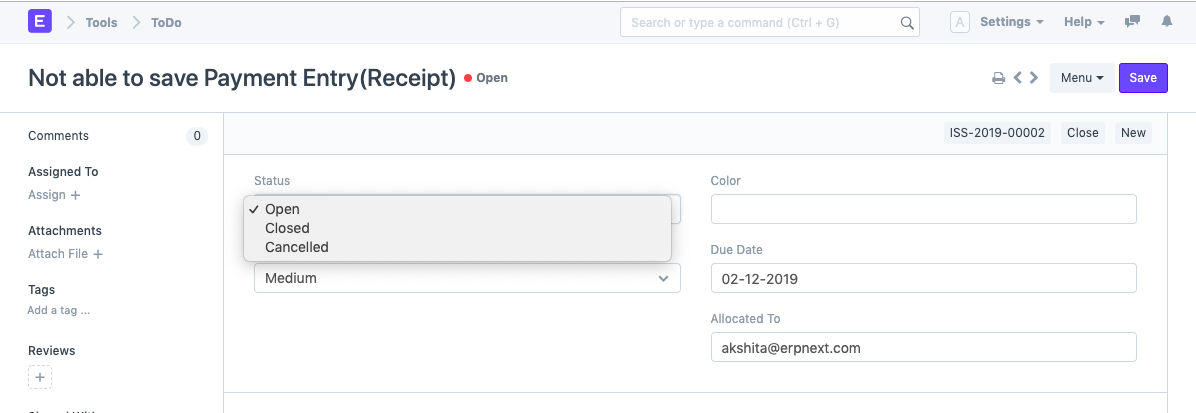
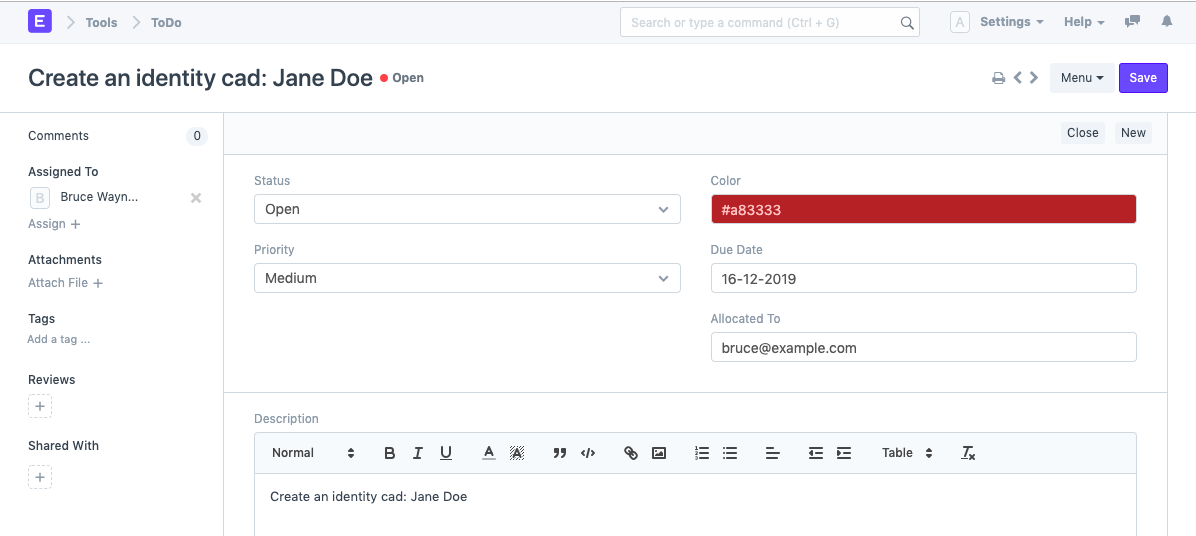
- Status: You can specify the To Do list's status. When created, the To Do's default status would be "Open." When the assignment is finished, the user can convert it to "Closed."
- Priority: You can set this task's priority as Low, Medium, or High.
- You have the option of giving each of your To Dos a specific color. Consider assigning the color Purple to a To Do generated as a weekly reminder for sending reports as opposed to Yellow for all personal To Dos.
- Due Date: The Due Date can be added to any To Do.
- Allocated To: This is where you can designate a different Geer ERP user as the recipient of a To Do.
1.2. References
In the sidebar of each document in Geer ERP, there is a button labeled "Assign To." Any Document may be assigned to the user using this option. The User would receive a To Do at the same time.
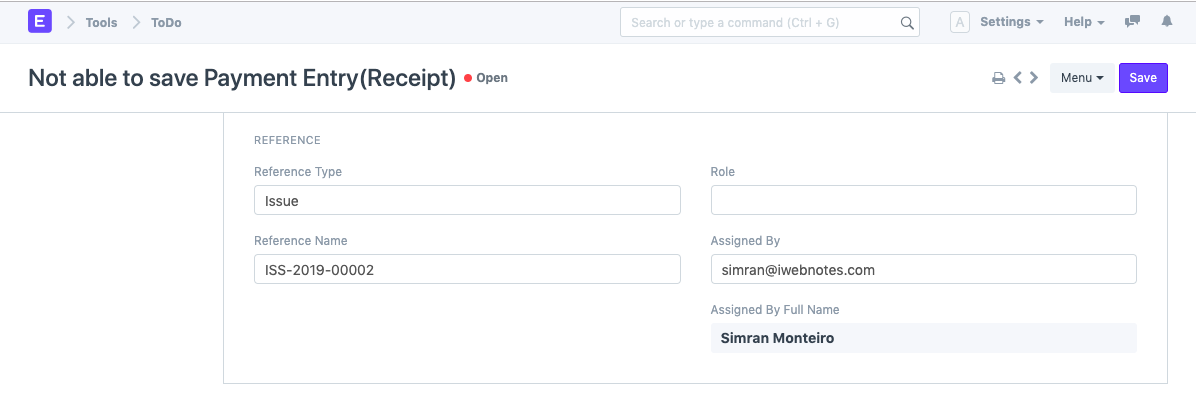
- Reference Document Type is connected to the To Do when it is formed from another document, such as a Task or an Issue.
- Reference Name: The name of the Reference Doc Type is linked over here when it is assigned via another Doc Type.
- Assignment By: The name of the person giving the assignment is also marked when you are given a To Do via another Document Type.
2. ToDo Statuses
Each of the three statuses in To Do denotes how a task is currently progressing.
- Open: When a To Do item is generated, it is automatically tagged as Open.
- Closed: The To Do list can be marked as "Closed," "Resolved," or "Completed" after an action is finished. Furthermore, the To Do gets closed automatically for circumstances like Issue Resolved or Task Completed. If necessary, it can likewise be reopened.
- Cancelled: The To Do associated with that Document automatically becomes "Cancelled" when a user is removed from the assignment of a To Do/Task/Issue.