Leave Policy Assignment
Leave Policy Assignment
Introduced in Version 13
Using policies that have been defined, ERPNext's Leave Policy Assignment is used to assign leaves to employees. Go to: to access the Leave policy assignment.
Home > Human Resources > Leaves > Leave Policy Assignment
1. Prerequisites
Creating the following is advised before making a leave policy assignment:
- Employee
- Leave Policy
2. How to create a Leave Policy Assignment
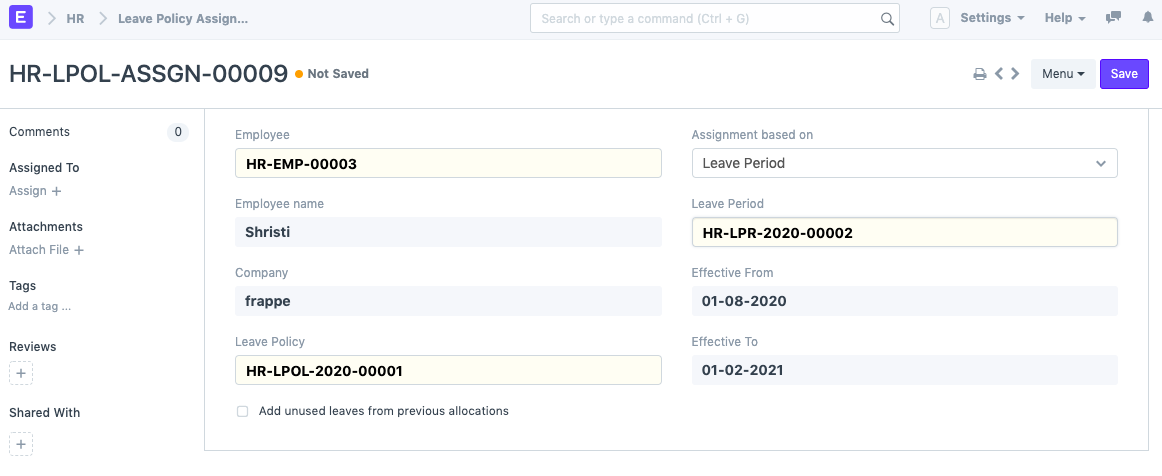
Click on New under Leave Policy Assignment.
Choose Leave Policy and Employee.
As required, choose Assignment depending on the following:
- You must choose the appropriate Leave Period if "Assignment based on" is set to Leave Period. Depending on the leave period chosen, the Effective From and Effective To dates will be automatically set.
- The Effective From date will be set to the employee's Joining Date if "Assignment based on" is set to Joining Date.
- You must manually set the Effective From and Effective To dates if "Assignment based on" is left empty.
- Publish and save.
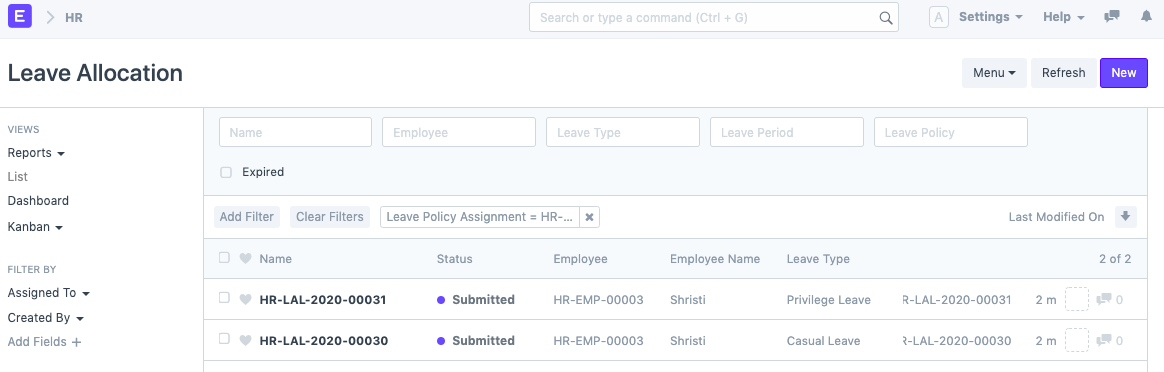
Documents for leave allocation would be generated automatically after submission based on the leave policy, as shown below.
5. Features
5.1 Bulk Leave Policy Assignment
Moreover, ERPNext enables the creation of several Leave Policy Assignments for numerous employees.
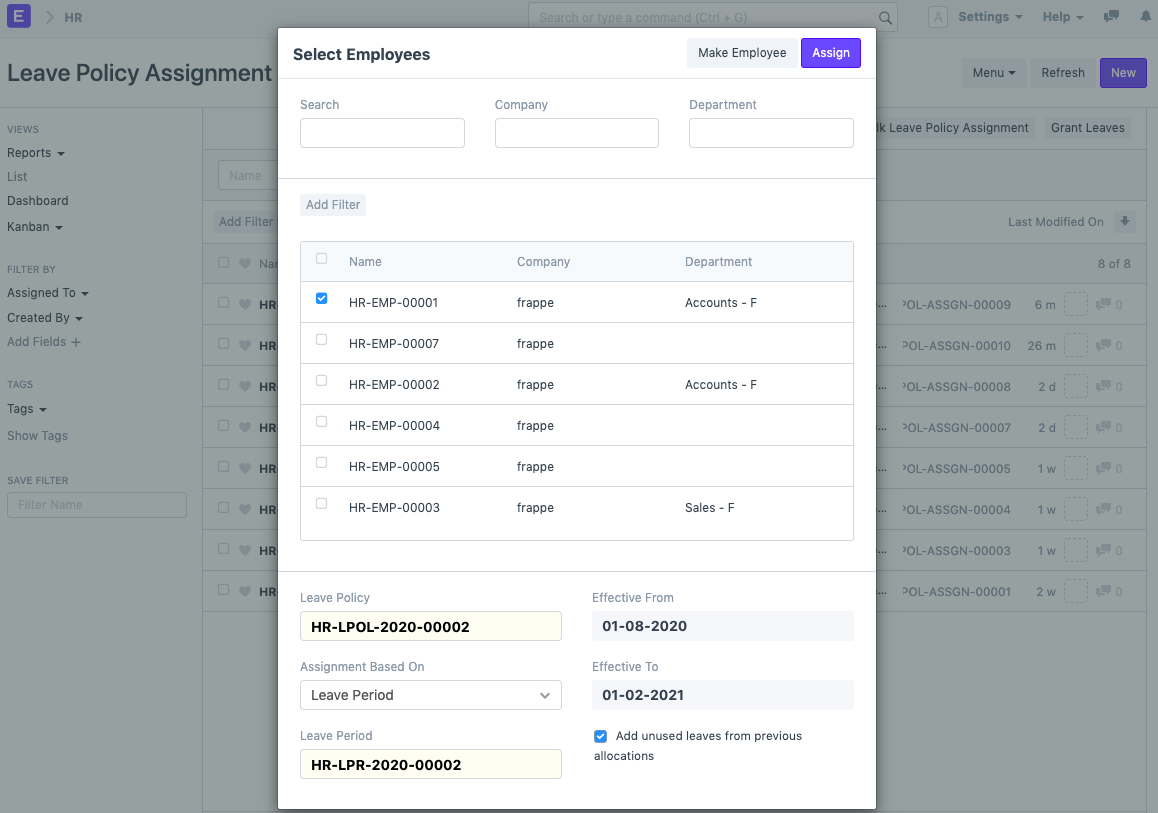
1.Click on Bulk Leave Policy Assignment from the Leave Policy Assignment list.
2.If a dialog box appears, choose Employee. By choosing Add Filters, you can use normal filters or you can filter Employee by Company and Department.
3.Choose the leave policy and the effective dates (from and to).
4.imply select Assign.