Email Template
Every email sent is unique, but some emails—often referred to as Email Templates or Standard Replies—can be standardized.
Go to: to see the Email Template list.
Home > Settings > Email > Email Template
1. How to create an Email Template
- Go to the Email Template list, click on New.
- Enter a name for this Email Template.
- Enter a Subject for this Email Template.
- Response is the standard content of the email that will be a part of this template.
- Save.
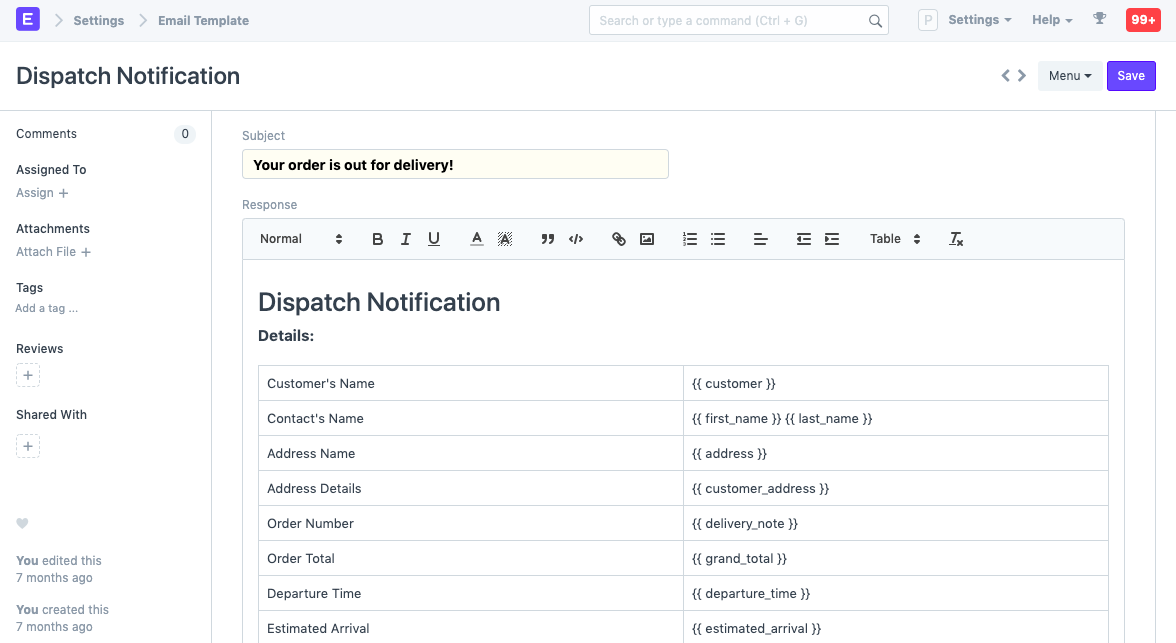
DocType Related To: (optional) The DocType this template is attached to.
1.1 How to use Email Template
In the "CC, BCC & Email Template" field in the email part of the document, you can use this Email Template in emails sent from Geer ERP. Geer ERP will retrieve the subject and response in accordance with the chosen template.
Each document type's default email template can be set via the Customize Form.
1.2 How to get fieldnames
The fields of the document from which you are sending the email can be identified by their fieldnames in your email template. By choosing Customize Form and the document type, you can access the fields of any document (e.g. Sales Order)
1.3 Using HTML to build the template
To move from the text editor to a code editor, toggle the Use HTML checkbox. This makes it simpler to utilize for features like loops in Jinja and enables better control over the email text.
1.4 Templating
The Jinja is used to compile templates. Click here to read more about Jinja.