Supplier Quotation
A Supplier Quotation is document by a potential supplier specifying the cost of goods or services they'll provide within a specified period.
The conditions of sale, the terms of payment, and warranties may also be included in a supplier quotation. The buyer's acceptance of the quotation might be viewed as a legally binding agreement for both parties.
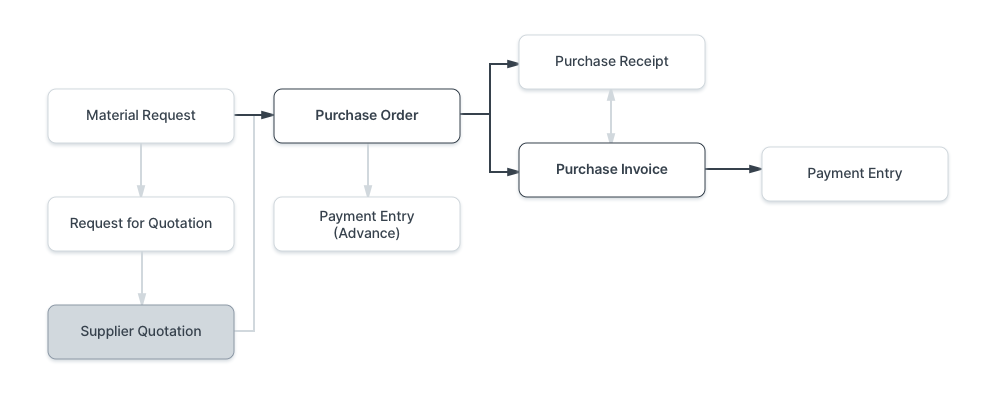
To access Supplier Quotation, go to:
Home > Buying > Purchasing > Supplier Quotation
1. Prerequisites
It is suggested that you first create the following before making and using a supplier quotation:
-Supplier - Item
2. How to create a Supplier Quotation
2.1 Supplier Quotation from Material Request
From a material request, you can create a supplier quotation:
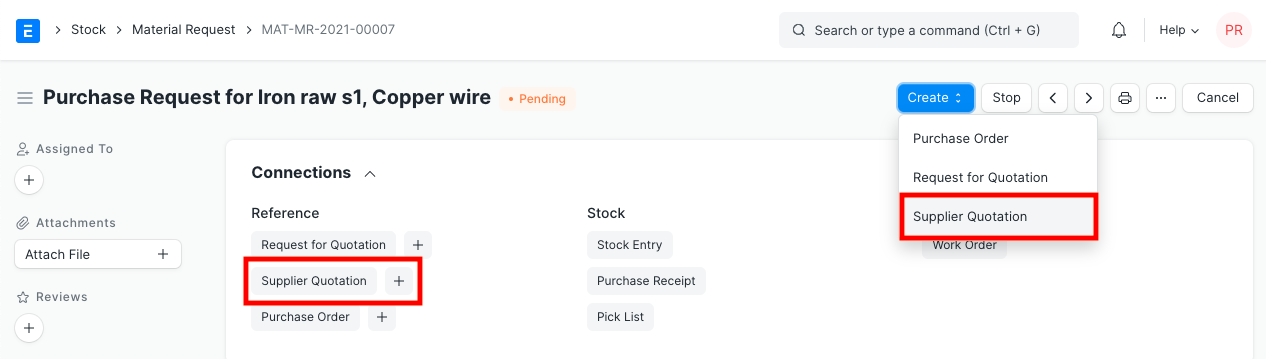 or:
or:
A Supplier Master can be used to build a Supplier Quotation.
or:
Through Geer ERP, the supplier can send you a quote directly. Visit the Request for Quotation page to learn more about this.
2.2 Creating a Supplier Quotation manually
Additionally, you can generate a Supplier Quotation straight from:
Buying > Purchasing > Supplier Quotation > New.
Choose the Supplier who provided the quote.
- If you have saved the Address and Contact in the Supplier Master, they will be retrieved.
- Select the amount and enter the item code. If you've set the Standard Buying rate for the item in Item Price, the rate will be fetched.
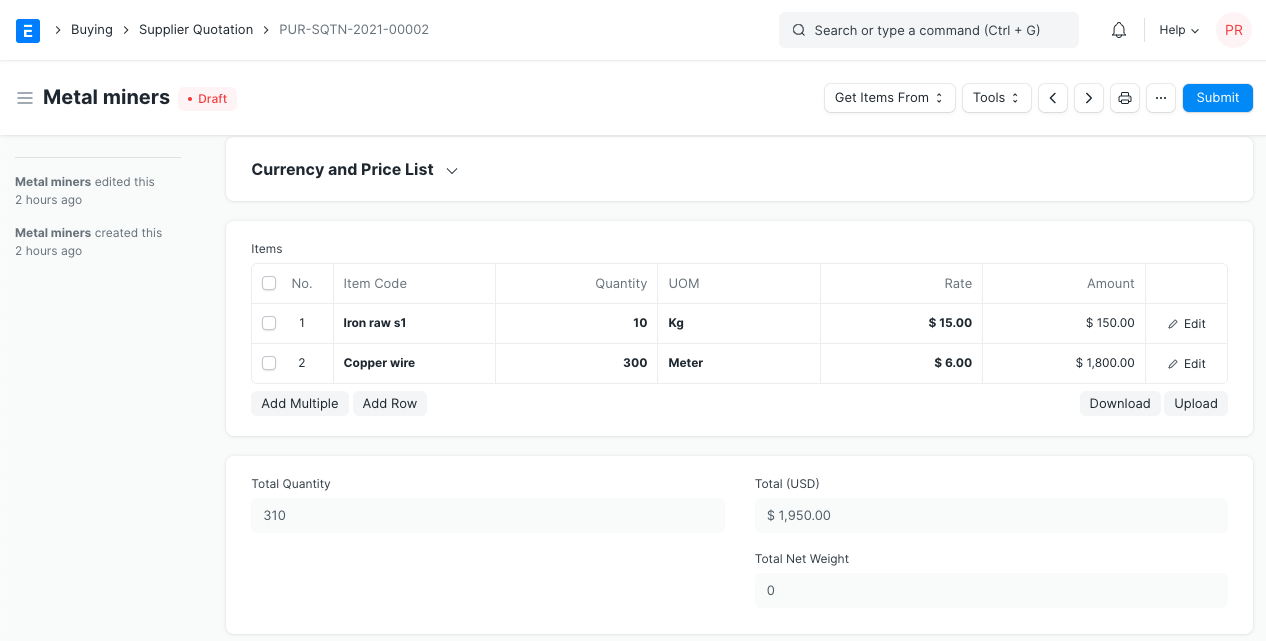
If you get the same item from many Suppliers, you typically send each Supplier a Request for Quotation. You may want to record all the quotes in several circumstances, particularly if you have centralized buying, so that:
- In the future, you may compare prices with ease.
- Verify that all Suppliers received a chance to submit a quote.
For the majority of small firms, supplier quotes are not necessary. Always compare the cost of information gathering to the value it actually offers! It is advised that you only do this with expensive products.
3. Features
3.1 Taxes and Charges
You can add it here if your Supplier will be charging you additional taxes or other fees, such as shipping or insurance. You can accurately track your charges with this assistance. Additionally, you must include any of these fees that increase the product's value in the Taxes table. For your taxes, you can also use templates. Please refer to the Purchase Taxes and Charges Template for more details on how to set up your taxes.
3.2 More
Tax Category, Shipping Rule, Purchase Taxes and Charges Template, Discount, Terms and Conditions, Quotation Number, and Printing Settings are all fields. These fields can be filled out for your record. For further information about these areas, go to the Quotation page. Keep in mind that information from your supplier, such as the shipping rule, taxes, discount, terms and conditions, quotation number, etc., can be recorded for precise tracking.
Note: - If set, Tax Category will be retrieved from the supplier master. - To edit the supplier quotation print, go to the print settings. - Your supplier's terms and conditions are listed below. - Using the "Link to material requests" button, the Supplier Quotation can be connected to a Material Request.
3.3 After Submitting
Following the submission of a Supplier Quotation, the following records can be made:
- Purchase Order – If you accept the supplier's quote, place a Purchase Order.
- Quotation: a price quote for your client.
- Auto Repeat: Auto Repetition of the supplier's quote at predetermined intervals