Quotation
Quotation
A quote is an estimate of the price for the goods or services you are selling to a potential or existing client.
During a transaction, a customer could ask for a letter outlining the goods or services you intend to offer, along with their costs and other conditions. It goes by a variety of names, including "proposal," "estimate," "pro forma invoice," and "quotation."
Go to: to see the Quote list.
Home > Selling > Sales > Quotation
An example of a typical sales flow is:

A quotation includes information on:
- The recipient of the Quotation
- The Items and quantities you are offering.
- The rates at which they are offered.
- The taxes applicable.
- Other charges (like shipping, insurance) if applicable.
- The validity of contract.
- The time of delivery.
- Other conditions.
Advice: Pictures look fantastic on quotations. Make sure your items are associated with a picture.
1. Prerequisites
It is suggested that you first create the following before producing and using a quotation:
- Customer
- Lead
- Item
2. How to create a Quotation
Click on New in the Quote list.
From the "Quotation To" field, decide whether the quote is for a customer or a lead.
Name the lead or customer here.
Give the given sum a valid till date beyond which it will be deemed void.
Sales, maintenance, or shopping cart are all possible order types. This page is not intended to be used to establish a shopping cart for a website.
The prices will be automatically acquired from Item Price when you add the goods and their quantities to the items table. By selecting Obtain Items from > Opportunity, you can also get stuff from an opportunity.
Add any additional taxes and fees that may be necessary.
Save.
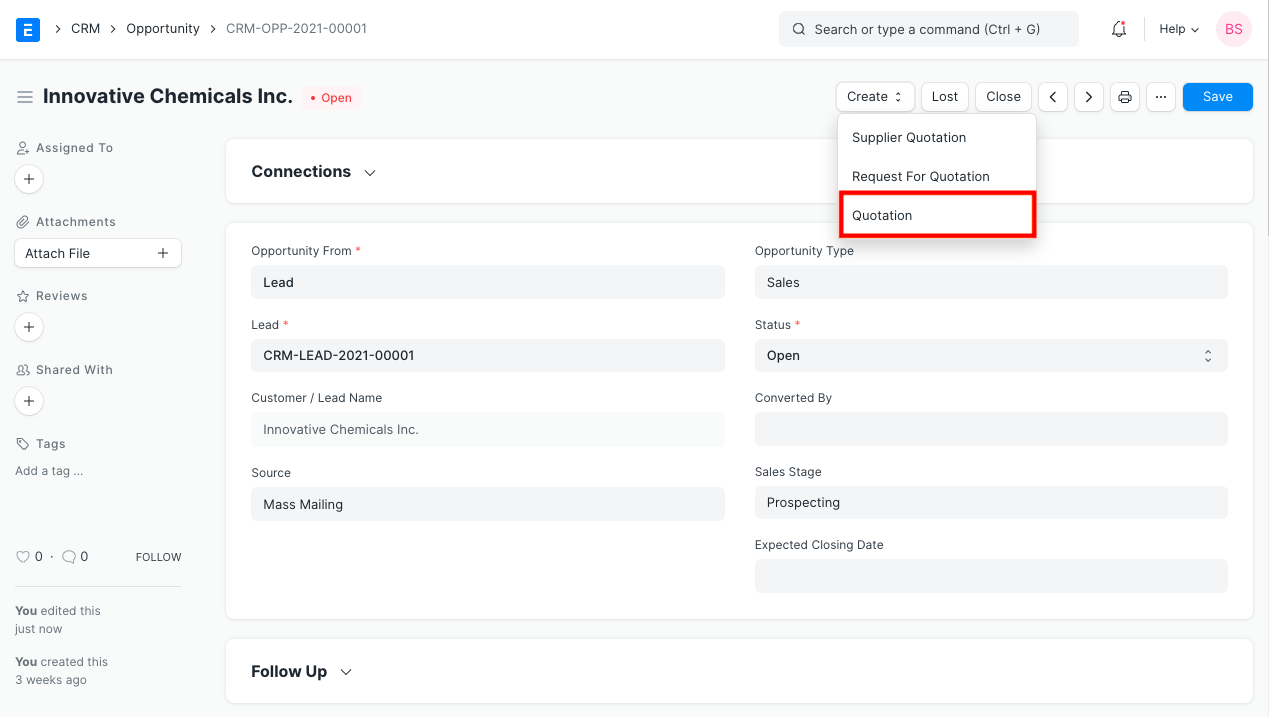
The following steps can also be used to construct a quotation from an opportunity.
3. Features
3.1 Address and Contact
Customer Address:This is the customer's billing address.
Shipping Address: The shipping address for the goods is given here.
Contact Person: You can provide the contact information for your customer's organization in this section.
Territory: region to which the client belongs. All Territories is the default.
3.2 Currency and Price List
The quotation or sales order's intended currency can be set. The item prices will be obtained from a pricing list if one has been set. The Pricing Rules established in Accounts > Pricing Rule will be disregarded if Ignore Pricing Rule is checked.
Read about Price Lists and Multi-Currency Transactions to know more.
3.3 The Items Table
By clicking on the inverted triangle located in the top right corner of the table, you can expand this table.
The item name, description, any attached images, the quantity (which is set to 1 by default), and rates will all be immediately fetched when you select the Item Code option. In the area titled "Discounts and Margin," you can add discounts.
Under Discount and Margin You can offer a discount or add more profit margin. Either an amount or a percentage can be used to set both. The Rate section below will provide the final rate. An item tax template made especially for the item can be assigned.
Item weights if set in the Item master, will be fetched.
The warehouse will be acquired from the item master for Warehouse and Reference; this is the warehouse where your merchandise is located.
The Projected Quantity and the Present Quantity are both listed under Planning. Click here to learn more about these fields. The "Stock Balance" button will send you to a document type where you can create a stock report for the item if you click on it.
Further remarks and the shopping cart are for internet transactions. When an item is added via a shopping cart, notes about the item will be retrieved here. For instance, add extra heat to the cuisine. created in version 12
A Page Break When printed, this item will be immediately followed by a page break.
In this table, you can duplicate, move, delete, and insert rows below or above.
To upload the items table to another transaction, you can also download it in CSV format.
Below the item table, the total amount, rate, and net weight of all items will be displayed. Pre-tax rates are displayed here.
3.4 Taxes and Charges
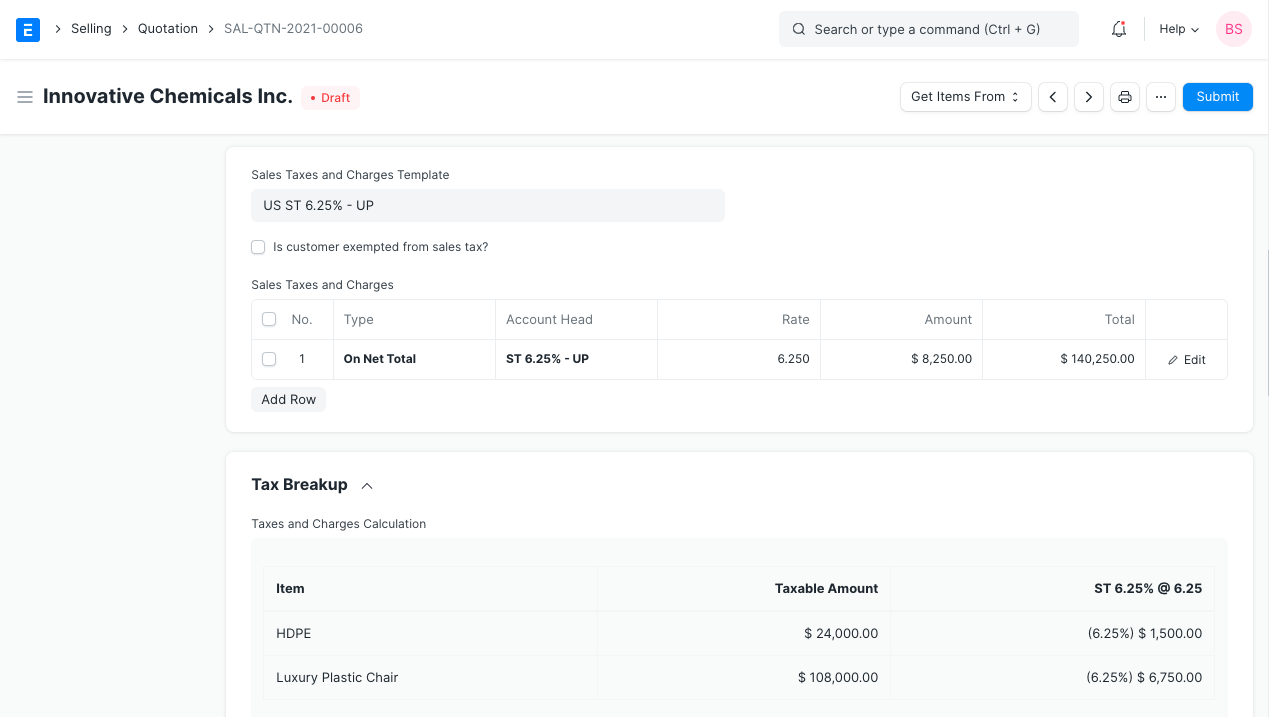
You have two options for including taxes in your quotation: either manually entering the taxes in the Sales Taxes and Charges table or using a Sales Taxes and Charges Template.
Below the table, the total taxes and fees will be shown. When you select Tax Breakup, all the elements and amounts are displayed.
Visit this page to learn how to automatically add taxes using a Tax Category.
Shipping Rule
A Shipping Rule helps set the cost of shipping an Item. The cost will usually increase with the distance of shipping. To know more, visit the Shipping Rule page.
3.5 Additional Discount
You can add a discount to the entire quotation in this section in addition to offering discounts per item. This discount may be based on either the Gross Total (i.e., after taxes and fees) or the Net Total (i.e., before taxes and fees). A percentage or dollar amount may be used to apply the additional discount.
For further information, see Applying Discount.
3.6 Payment Terms
Payment is not always made in full. Depending on the terms of the arrangement, you can pay half before shipping and the other half once you've received the goods or services. In this section, you can manually enter the terms or add a Payment Terms template.
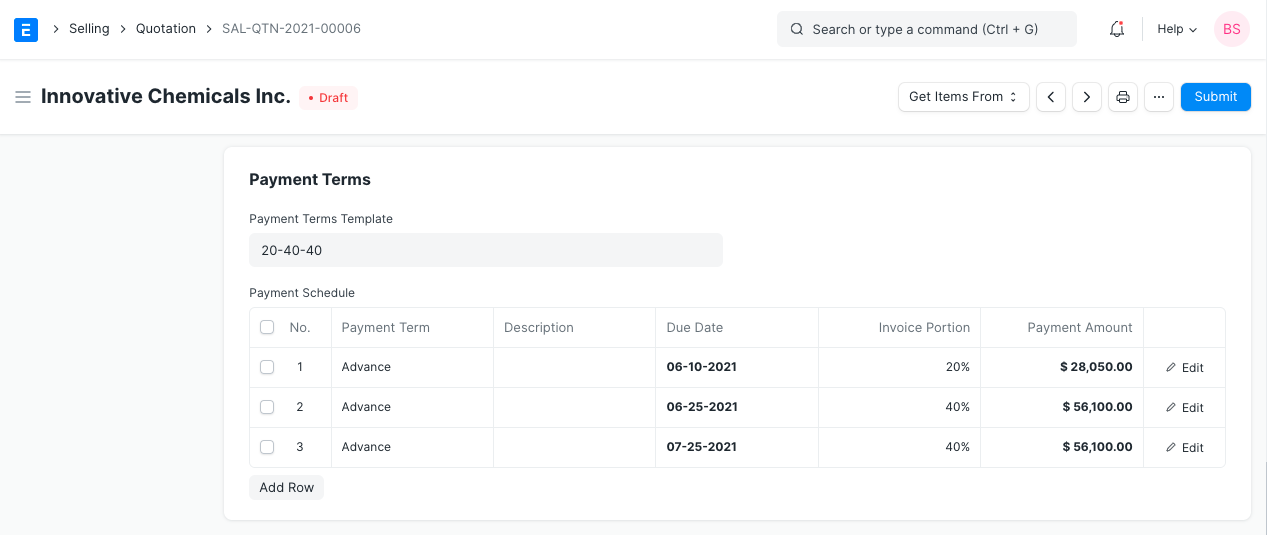
Read Payment Terms to know more.
3.7 Terms and Conditions
There may be specific Terms and Conditions in Sales/Purchase transactions on the basis of which the Supplier supplies goods or services to the Customer. The Terms and Conditions can be applied to transactions, and they will show up when you print the paper. Click here to learn more about the terms and conditions.
3.8 Print Settings
Letterhead
Your sales order and quote can be printed on letterhead from your business. Find out more here.
The option "Group same things" will group identical items added more than once to the items table. When you print, this will be evident.
Print Headings
Proforma invoices and proposals are other names for quotations. This can be accomplished by choosing a Print Heading. Go to Home > Settings > Printing > Print Heading to add new print headings. Find out more here.
3.9 More Information
Campaign: The quotation may be related to a sales promotion. A collection of quotes may be used in a promotional effort.
Source: If quoting to a lead, regardless of whether it came from a campaign, a supplier, an exhibition, etc., a Lead Source type can be linked. If you are quoting a customer, choose Existing Client.
Supplier Quotation: A buyer can link a supplier quotation to compare it to your present quotation. By contrasting the two, you might gain a notion of profit or loss.
3.10 Submitting the Quotation
A "Submittable" transaction is a quotation. A draft is saved when you click Save; when you click Submit, it is permanently submitted. This Quote must be frozen since it will be sent to your Customer or Lead; otherwise, changes may be made after the Quotation has been sent.
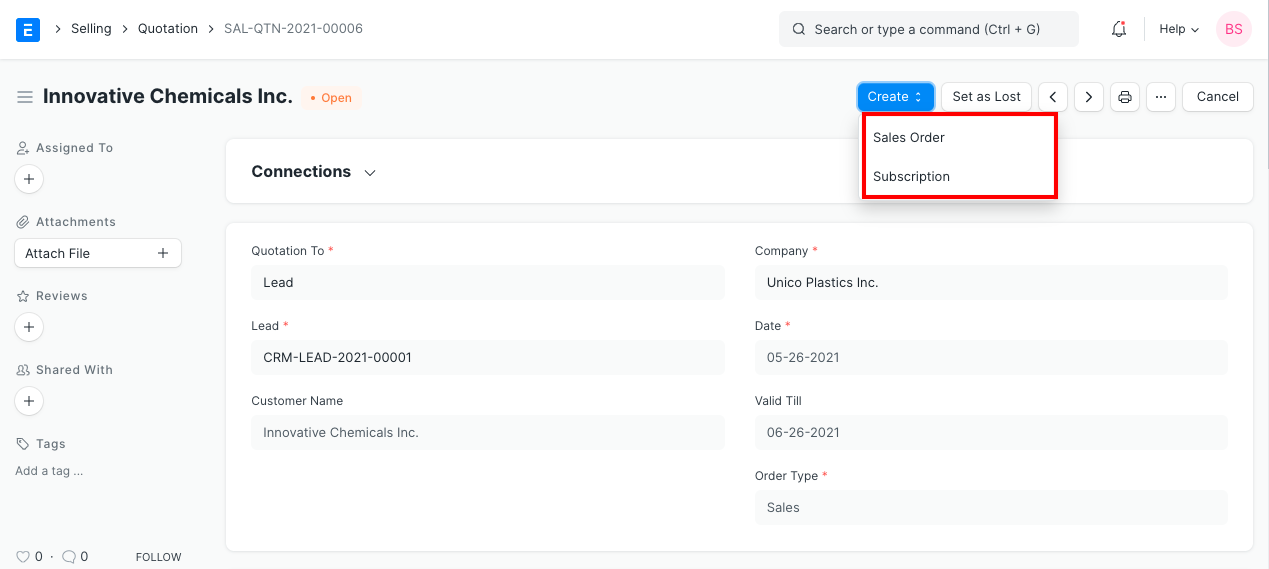
After submission, you can use the Create button to establish a Sales Order or a Subscription from the Quotation. You may access the Sales Order associated with this Quotation on the Dashboard, which is located at the top. By using the "Set as Lost button," you can mark the quotation as lost if it didn't work out.